


Hacker
Professional
- Messages
- 1,041
- Reaction score
- 850
- Points
- 113

Slow, sluggish Internet speeds, the inability to watch streaming video and listen to audio, loss of Wi-Fi signal, the presence of dead Wi-Fi zones - each of these problems is literally maddening, especially now that access to the Internet has become almost as important for some as breathing. Well, maybe not so critical, but still important. If the only way for you to get an acceptable reception level is to be in the same room as your Wi-Fi router, then these simple tips will help you optimize your network.
The distance to the router is the most obvious problem, since there is a certain optimal coverage radius within which the wireless signal can pass.
It is also possible that the problem is not caused by interference or other networks.
There are many other reasons why your Network connection may not be perfect, to put it mildly.
1. Update your router's firmware
Perhaps your router just needs an update.
In fact, even if everything is fine with your Wi-Fi network, it is better to update the firmware regularly.
2. Optimal placement of the router
The location of the router may affect its coverage area. It may seem logical to put the router inside a cabinet or right next to the window where the cable comes in, but this may not be the right place. A wired router can be hidden out of sight. On the other hand, a wireless router needs open spaces - away from walls and other obstacles. And it's not just about physical obstacles. Powerful devices or electronics operating in close proximity to the router can affect its performance.
If your router has external antennas, point them vertically to increase coverage. Raise the router if you can. You can install it on a wall, put it on a shelf or on a table - this can improve the signal. There are many different tools available to help you visualize your network reach. We like Heatmapper or inSSIDer, which show both weak and strong points in your Wi-Fi network. There are also plenty of mobile apps like Wi-Fi Analytics from Netgear.
3. What is your frequency?
Check the admin panel of your router and make sure that everything is configured for optimal performance. If you have a dual-band router, then you will likely get better bandwidth if you switch to a frequency of 5 GHz, instead of using the more common 2.4 GHz. If you don't have any other problems, then you'll probably find a reduction in interference from other wireless networks and devices, because the 5 GHz frequency isn't used very often. Switching isn't a tricky business. Look in the router's admin panel for options related to operating at a frequency of 5 GHz.
4. Change the channel
Have you ever played with walkie-talkies as a child? If so, you probably remember that if the walkie-talkies weren't tuned to the same channel, you couldn't hear each other. Or, if you found yourself on a different channel, you could listen to someone else's conversation transmitted from completely different devices. The same thing happens with baby monitors.
In the same way, all modern routers are multi-channel, so when interacting with your devices, they can switch over different channels. You usually use what was set by default for the router, but if your neighbors routers use the same channel, you may experience signal congestion. On Windows computers, you can see which channels are used by neighboring Wi-Fi networks.
Once you know which channels are being used, select the one with the least load and manually switch the router to transmit data on that channel. This parameter can be found in the router's admin panel. Although the interface differs depending on the device and manufacturer, you will most likely find this option in the Basic Wireless settings category.
5. Quality control
Most modern routers come with QoS (Quality-of-Service) tools to limit the bandwidth that applications use. This is useful if you often watch streaming video or use Voice over IP (VoIP). The last thing you want to see is how the quality of your videos or calls degrades just because someone downloads a giant video file from Dropbox. You can explicitly specify which apps and services will get priority, or lower the priority for downloading files at certain times of the day.

6. Don't rely on outdated hardware
So far, all the tips have focused on making the most of your existing hardware, but if you're using older hardware, you probably won't be able to improve its performance. We all have a "if it works, don't touch it" mentality in relation to backend devices, especially network devices. But if you bought your router a few years ago, you're probably still using the 802.11 g standard. There are even routers based on the 802.11 b standard.
You should think about more than just the age of your router. If you've bought a computer in the last few years, you'll probably have an 802.11 ac wireless adapter or at least an 802.11 n wireless adapter, so it should be compatible with newer routers. But if your laptop doesn't have a built-in new adapter, you can buy a Wi-Fi adapter with a USB interface.
802.11 ac Multi User-Multiple Input Multiple Output (MU-MIMO) routers are also starting to appear on the market. MU-MIMO routers, such as the Netgear Nighthawk X10 AD7200 Smart WiFi Router, can send and receive multiple data streams simultaneously to multiple devices without reducing bandwidth. This requires specialized tests for working with multiple clients. The clients themselves must be compatible with MU-MIMO.
7. Replace the antenna
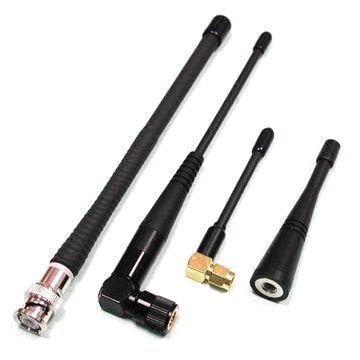
If your router has an internal antenna, then adding an external one may be a good idea, since the external antenna is able to send a stronger signal. Many router manufacturers sell omni-directional antennas that send a signal in all directions, or directional antennas that send a signal in only one specific direction.
8. Install a Wi-Fi extension cable
Perhaps it's just a matter of the size of the room. All routers can only reliably transmit a signal up to a certain distance. The farther away from the router, the weaker the signal becomes. If your wireless network covers a large area, then you may need a Wi-Fi range extender, also known as a wireless repeater or Wi-Fi extender, which is used to amplify the signal. It's a good idea to buy one if you have thick walls or some other architectural or structural solutions that block the signal.
Range extenders are similar to standard routers, but they work differently. To begin with, they pick up the existing Wi-Fi signal coming from your router, and then simply relay it. From your router's point of view, such a range extender is just another client with an IP address, like a laptop, for example. Even though it's not a router, you should still use the same rules to determine where to place it.
9. Upgrade to a Mesh-based Wi-Fi system
Range extenders help cover Wi-Fi signal dead zones, but they can provide about half the bandwidth of the main router. Access points typically offer more bandwidth, but require a wired connection to the primary router. And both of these solutions usually create a new network SSID, which means you'll have to reconnect to the network every time you move from one coverage area in your home to another. If you want to provide a "seamless" connection throughout the house, then you should consider Wi-Fi systems.
Wi-Fi systems are designed to provide coverage to all corners of your home. They consist of several network components. There is a main router that connects directly to your modem, and a number of satellite modules or nodes placed throughout the house. They are all part of a single wireless network and share the same SSID and password. Unlike band extenders, which communicate with the router over 2.4 GHz or 5GHz channels, most Wi-Fi satellites use network technology to communicate with the router and with each other.
Wi-Fi systems often come with handy mobile apps that guide you through the entire installation process with simple, illustrated instructions. The app tells you where to place each node for maximum coverage and selects the best Wi-Fi channel and radio range for optimal performance.
10. Look inside your router
A brave user should definitely look at the open source DD-WRT operating system. Many major vendors, such as Linksys, Netgear, and TRENDnet, produce routers that can use DD-WRT. Alternatively, you can simply download DD-WRT and install it on any router you have. DD-WRT can increase productivity and give you access to more advanced network features, including Virtual Private Network (VPN), security, and fine-grained configuration.
For more tips on how to speed up your internet connection, check out our other articles on this topic. After you have made all the necessary settings to optimize your wireless network, make sure to check the following settings.


