


Teacher
Professional
- Messages
- 2,669
- Reaction score
- 833
- Points
- 113
In order to have something to work with, you must first get the necessary material, in our case, these are logs. You can get them, buy, cheat, or get them for free on some regular distribution, or just from a kind person (hardly).
Where can I get the logs? Spills traffic (orders) to their stealers. At the moment, we are pouring on Azor - it knocks on average 90% (with the graber disabled). How much $ was poured into a point until they found a good traffic ... even scary to say!
Log vendor sells the Azor build, prepares the hosting and domain himself, as a result, I forgot about this eternal bother with hosting, installations and other shit. I just pay him $ 20 for a rebuild and get a new socket. One strait - one host, one domain. Now on this software I get the best results, but I have tried a lot, believe me. Write that you came from Ostap and do not be stupid, please, the person, although polite, is still a professional in his field and he does not need to fuck his brains over trifles.
If you don’t want to bother with searching and setting up software, traffic and hosting, then you can buy logs, however, frankly, they don’t sell good logs. We started to have surpluses, things that we don’t have time for and don’t want to work off, for example eBay and PayPal. Of these logs, we mainly work out only BA and Amazon, after which we are ready to sell them to everyone, so if you are interested in this offer.
What do you need?
The most essential tool for working with logs is, of course, Linken Sphere. Of course, you can replace it with a well-configured and prepared for working with portable Google Chrome or Mozila cookies, however, personally I still recommend the Sphere, because it is many times more convenient, and such a setting is quite difficult to do on Chrome, if not to say , which is completely unrealistic.
You will need a proxy or SSH, here is what you like best, I'm used to working with socks and I do everything through them. I don’t use VPN, I put the proxy on the base at once and that's it.
Sometimes you have to break through the geo by IP, when the stealer did not steal the data by ZIP or the city of cardholder in order to pick up the sock closer to the victim.
To check the anonymity settings and tune the system for cardholder, I usually use this:
Fake detector from the Sphere developers. The well-known whoer WebRTC Leak Test.
If you have a bunch of logs and you need to check the link you need (a request, for example - eBay.com), then you can use special programs to find the necessary phrase in folders with text documents, by analogy with searching in TotalCommander.
Examining the log
So, let's say you got yourself a log. From the stealer Azor, it looks like this:
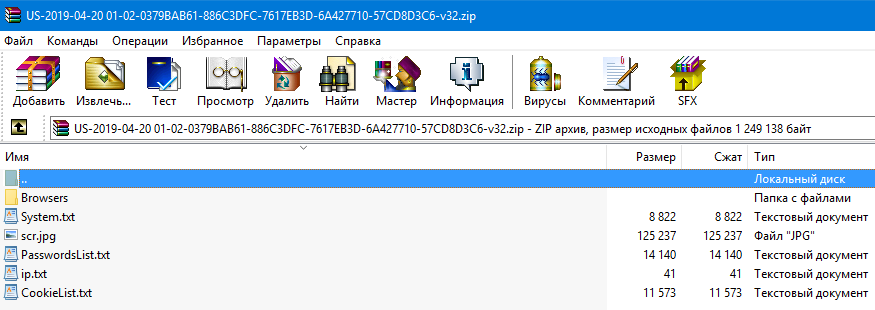
This is a log received from the stealer with the graber turned off, that is, there are no files from the desktop (or from any other place, taking into account the horn settings). Sometimes there are also crypto wallets, this is the "Coins" folder, but it is not in this log either. We are primarily interested in cookies and passwords. Cookies are located in the Browsers \ Cookies folder:
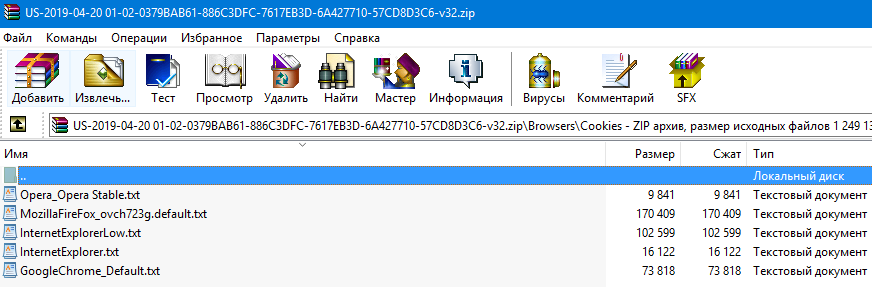
It happens when there are a lot of them, that is, each browser used on the victim's computer has its own cookies. To do this, ideally, you need to configure the system in different ways, that is, change the UserAgent to the required browser and load those cookies for which browser you have adjusted.
Open the cookies and look for your link there (CTRL + F), if there is no mention of amazon.com in the cookies, then for this request the log is definitely shitty and hardly suitable for work. Cookies are the basis for successful work in our business!
The root directory contains the PasswordsList.txt file, which lists the logins and passwords from all sites visited by cardholder.
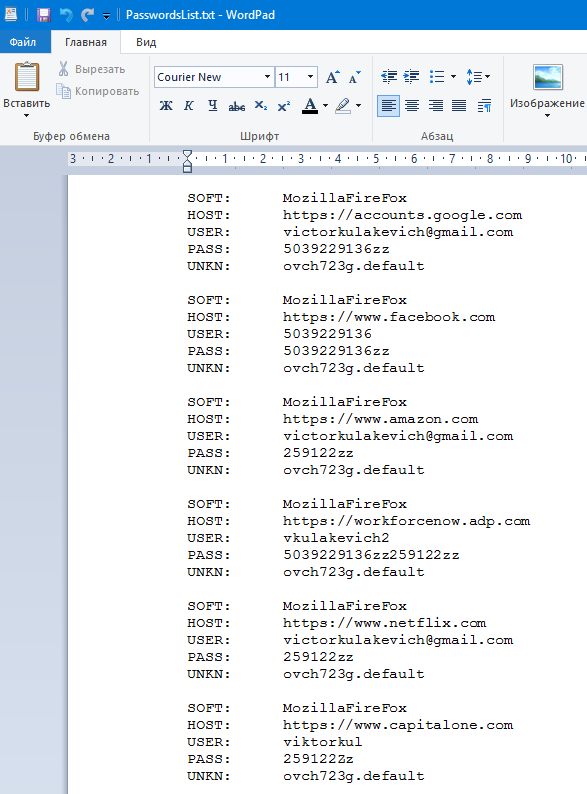
The first line - SOFT - is exactly the same browser from which the victim entered this resource, and the last line (UNKN) is the name of the session. That is, in order to go to Amazon or CapitalOne, we must load cookies from this file - MozillaFireFox_ovch723g.default.txt (see the screenshot above).
The second line in each block - HOST - is the site to which this information belongs, that is, USER and PASS data, I hope that everything is clear here. It happens that the password field is empty, or in general all passwords are empty. This is not a software problem or a traffic problem, usually this only means that cardholder simply does not save passwords or uses various utilities to clear them.
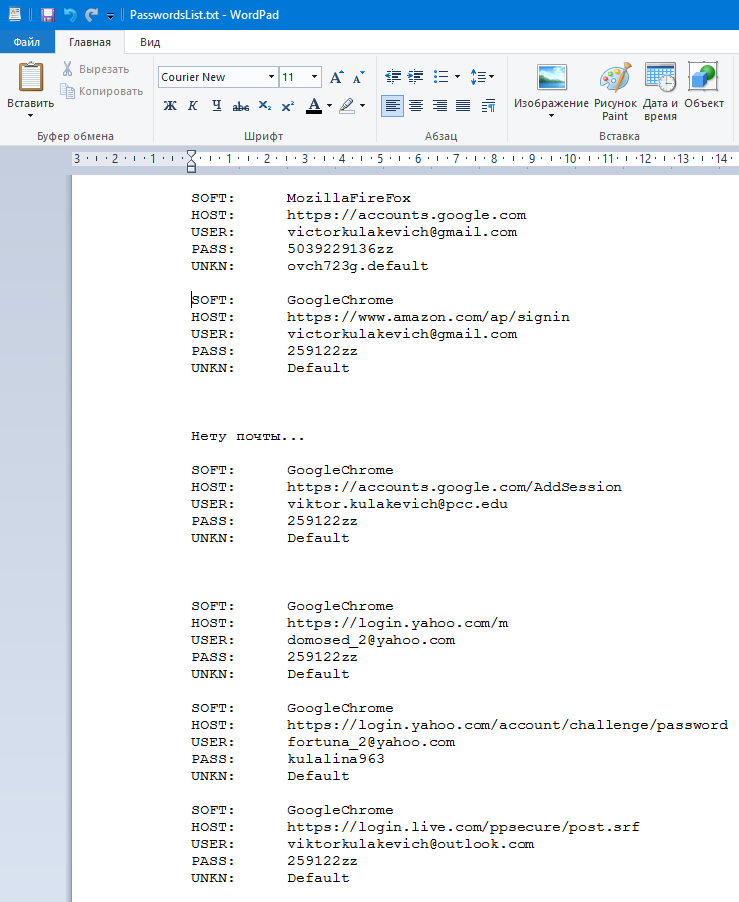
Usually I always look for the necessary links in the password file and move them to the beginning of the file, delete duplicates, collect all possible passwords, make it more convenient and only then work using the log. Always immediately find access to all mails that appear in the services you need. My ready-to-run log usually looks like this:
The next important files for us in the log are System.txt and IP.txt. The first contains important information about the cardholder system, such as:
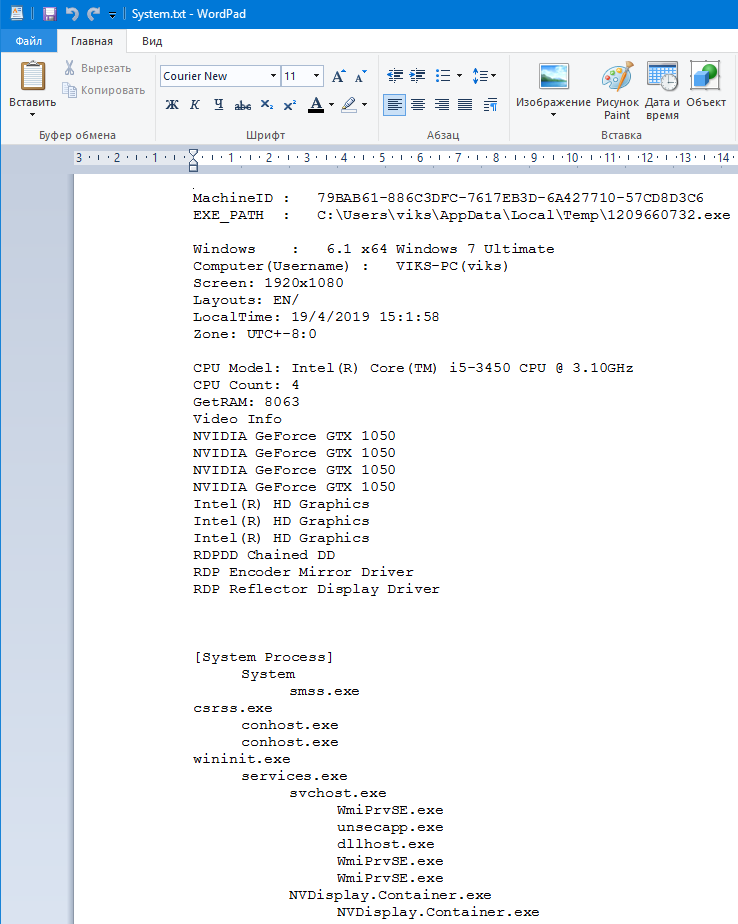
The second file contains information about the victim's IP, we need it to break through geolocation, insert this IP address and get detailed information in this form:
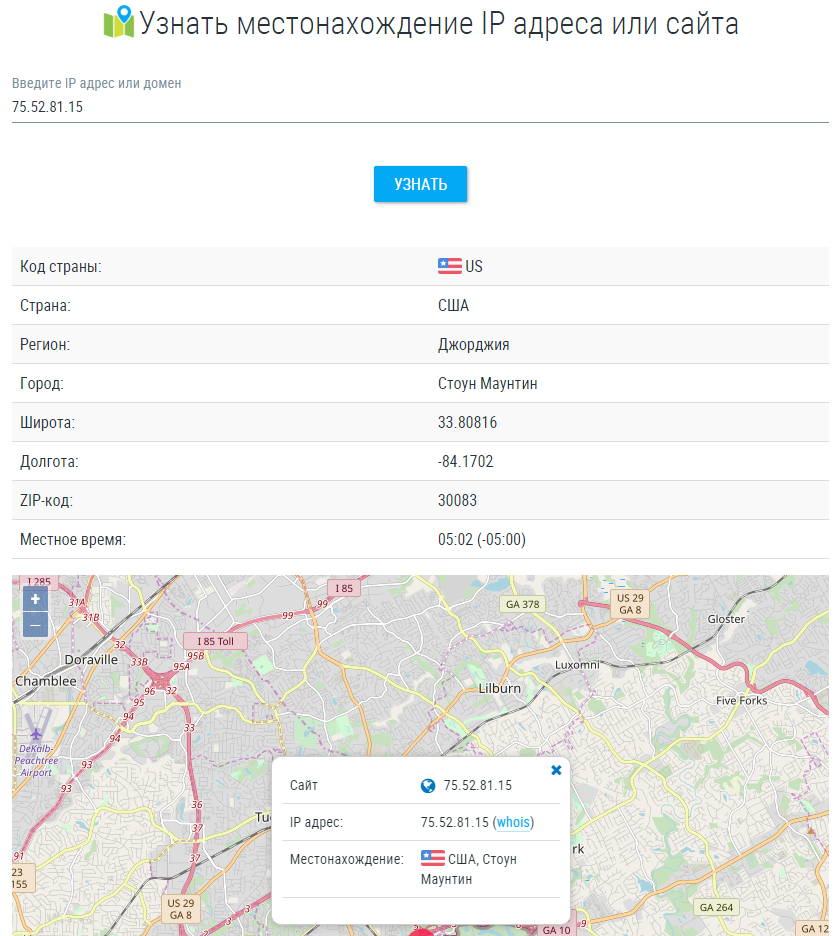
Now let's try to verify this data with those that the stealer managed to steal, go to the Browsers \ AutoComplete folder (there are also several files there, depending on the number of browsers and settings profiles) and open the file located there.
I search the file for words such as ZIP, Address, or City. In my case, by the word ZIP, I found a value close to the punched one by IP:
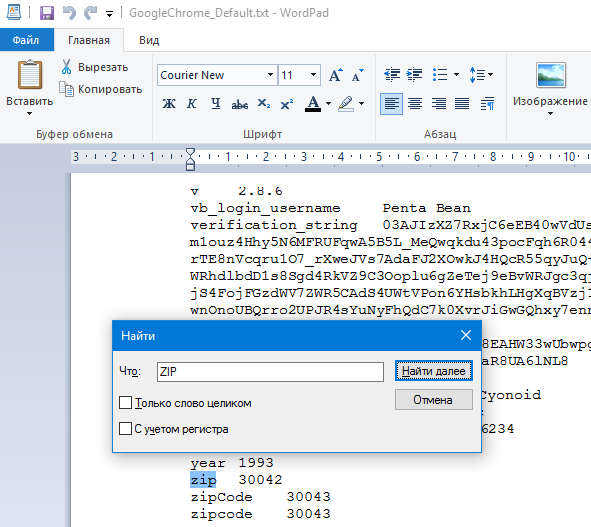
I will search for a proxy using this data, I think I will find something. City in the autocomplete was different, and the state, of course, coincided.
In this file, you can find a lot of interesting things, for example, answers to a secret question in any service or even a CVV from a credit card, but it's quite difficult to figure it out, and these files are not always large, so it's random.
System Setup
Let's start with the wonderful and previously unknown proxy service 911.re, after many narrow-minded people (fucking info-gypsies) told the whole darknet about it, we got a drop in the quality of the material, but still this service is the best today, and the price just funny.
Unlike most of my fucking "colleagues" who only know the link to the resource, but do not know how to use it, I will tell you a detailed configuration of this client to work with the sphere. So, follow the link, choose a tariff, download the application, unpack, install the proxyfire (available in the program folder) and launch it!
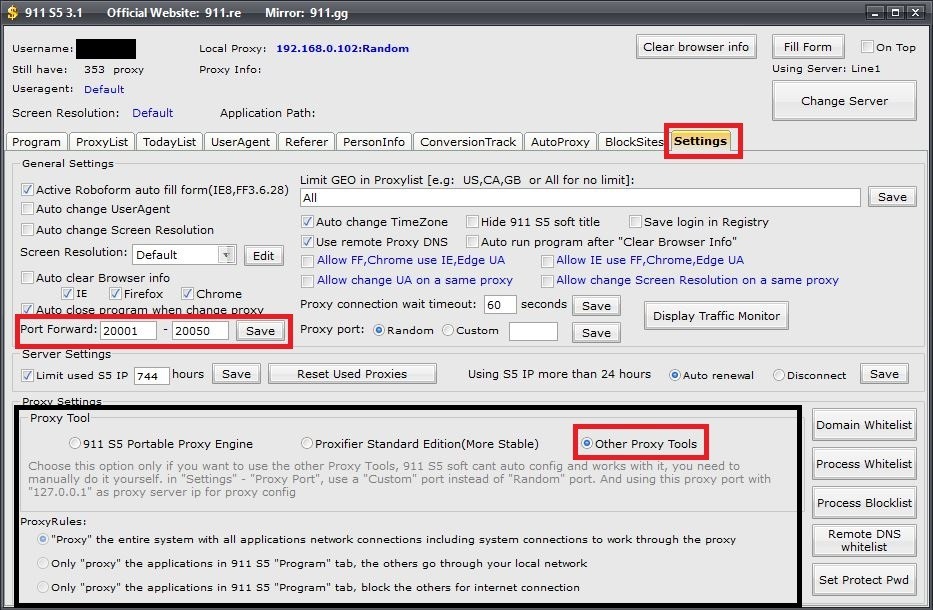
Do everything in the same way as in the screenshot, these settings are used to work with the Sphere, for other browsers it is best to check the "Proxifier Standart Edition (More Stable)" checkbox, however, this is what a proxy fireer is for. I warn you right away that in this mode 911 will configure the proxy fire itself and change the custom settings, so when working, for example, with SSH, you will have to change everything by hand.
We select a proxy for our CH, we know what ZIP it has (see the previous screenshots), so we select it for it, for this, go to 911 to the ProxyList tab and do this:
To connect the required proxy, right-click on the entry and select the following:
After that, the selected sock will be displayed here:
Go to the Sphere settings, open a browser and create a new session, that is, click on the "+" on the main window.
1. This is the name of the session, when there are a lot of them, it will not be convenient to navigate in the created sessions, so name it so that you can understand what is there and why;
2. We take the IP and port from 911, the very window that I said not to close, enter the values in the corresponding fields;
3. You check the connection to the proxy, if everything is OK, then a green entry will appear to the right of this button (see screenshot);
4. You copy the IP that appeared after checking the proxy into the next window - this is wRTC, now it will be the same as the IP;
5. You insert DNS under the country of the log (in our case, USA), you can find a suitable one here;
6. Checking DNS. Even if everything is OK, the session may still not work, if you see an error after starting the session, first try changing the DNS to another. Always write down the successful ones and use them in subsequent work, so as not to waste time on this.
The next thing we need to do is adjust the user agent and hardware for cardholder, use the System.txt file for these purposes (remember I parsed it at the beginning of the article?)
1. We set the screen resolution - we take the necessary values from the settings file - System.txt;
2. Keyboard layouts and languages can be copied from the same file and pasted here;
3. After the proxy check, this field will automatically change, check this data with the cardholder data;
4. UserAgent - this record is a collection of OS data (version, bitness) and browser data. We are looking for the Chrome browser installed on the cardholder computer:
Why Chrome? I looked at the passwords and saw that in most of the services cardholder was logged in from Chrome, so first I configure UserAgent for this browser.
As a result, we have the following data: Windows 10.0 x64 Windows 10 Enterprise and the Google Chrome browser (73.0.3683.103). We take any UserAgent with 10th 64-bit Windows and Google, for example, like this:
We have a different version of the Chrome browser, just change it to ours and get:
It is this line that we need to add and select as our UserAgent.
5. Settings is WebGL, it deserves a separate screenshot:
Click on the generate from userAgent button, just after you have done all the settings before. You will get something similar to this:
Now click on Save!
It remains to correct a couple of parameters in the additional settings (more precisely, check if everything is correct there), for this go here:
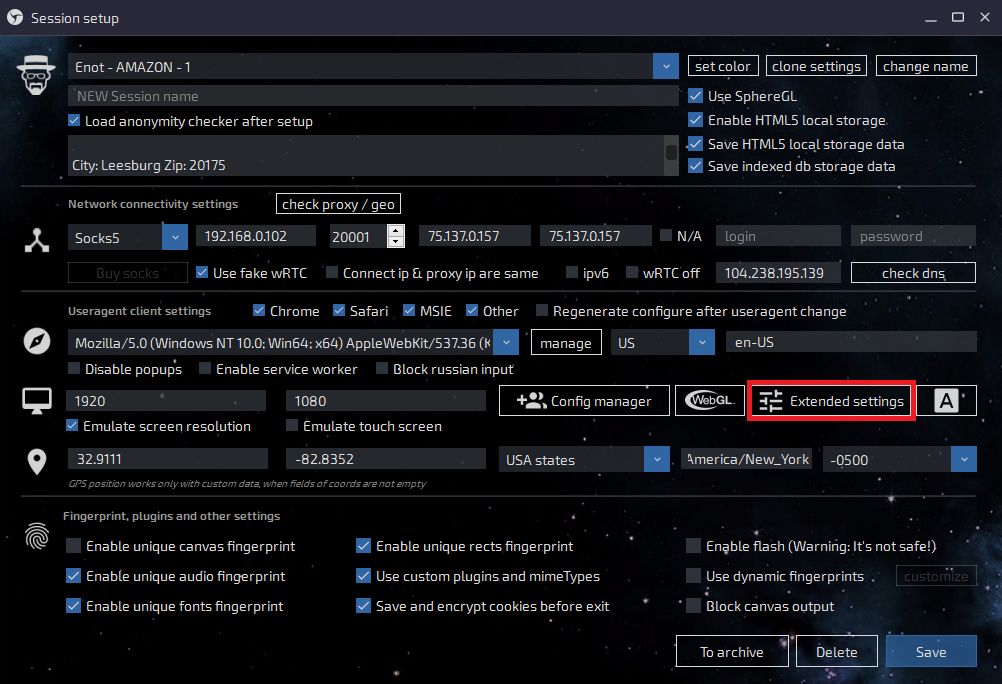
And immediately you will see, perhaps, the first of the jambs - the bitness of the OS, for some reason the sphere does not take it from our UserAgent:
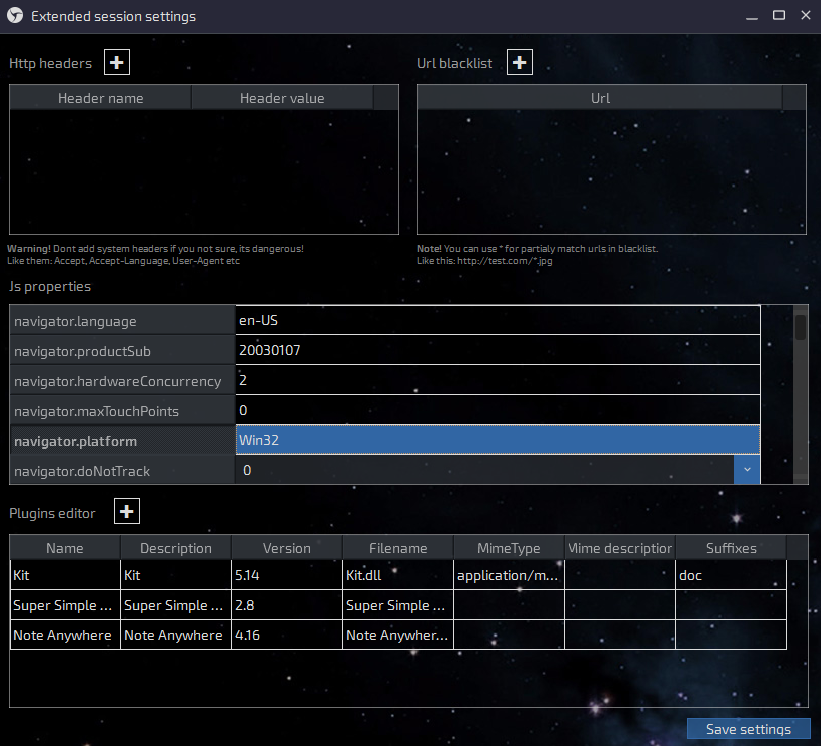
Change your hands to Win64 and scroll to the following parameters. Be careful with the mouse wheel, if you get the pointer to one of the parameters, you can accidentally change the value "true" to "false" - be careful. You need a screen resolution:
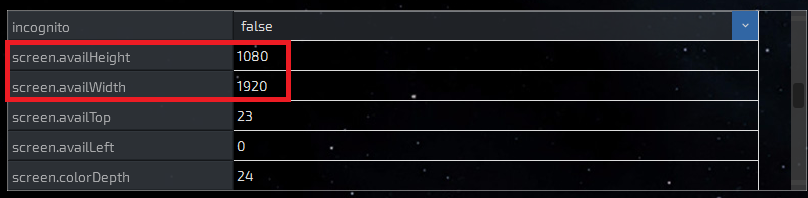
And further:
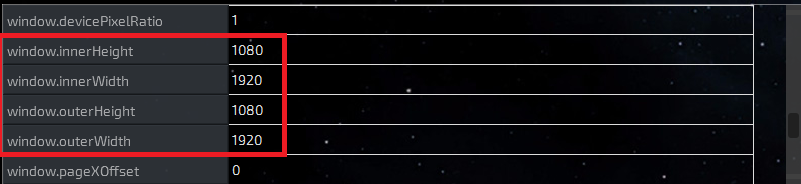
Everything coincided with our settings, now we are ready to launch the created session and check the performance of the settings. But first you need to replace the default Whoer.net page with Google.com
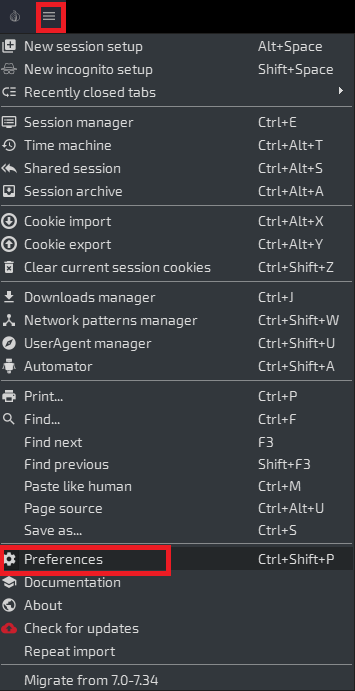
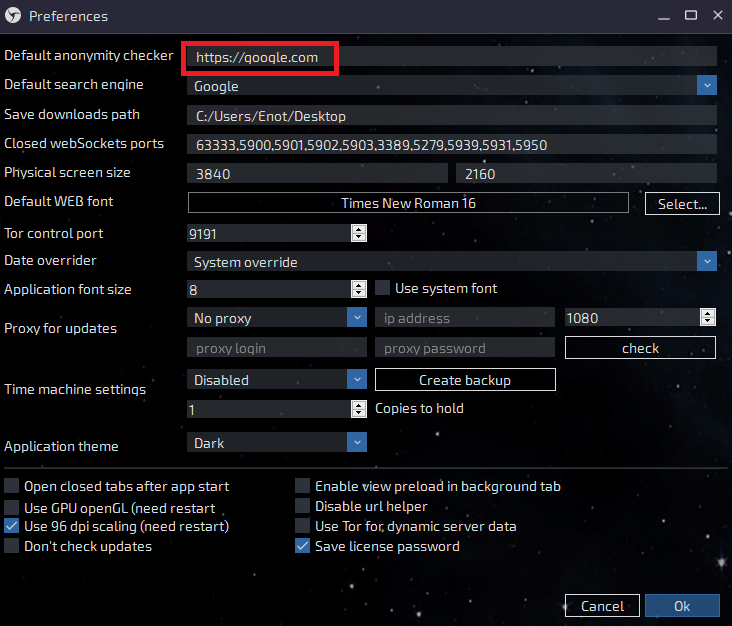
Now check your anonymity on Whoer.net, everything should be 10/10 there, otherwise you have to look for a problem in the settings or a leaky sock and change it. After you have checked everything and made 100% sure that everything is OK, clear the cookies and load the cookies from the log:
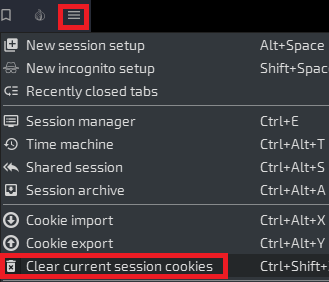
Cleaning cookies
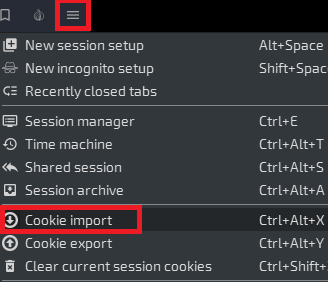
Import
In a new window, select your session (one of the reasons to call sessions normally) and select a file with cookies, if there are several of them, then take the one with which browser you are currently working (for which browser UserAgent has configured). Cookies are in the Browsers \ Cookies folder - see one of the first screenshots in the article.
Then click on the Import button and the session will close, and the sphere will give you a message about the successful loading of cookies, and also inform you of their number. Now you have to restart the session by clicking on the corresponding cell on the main window. That is why we changed the start page from Hooer to Google, because what the fuck is there about Hooer in the KX cookie? That's right - to nothing!
We work
If everything is done as it should and the cookies are fresh, then on the google.com home page in the upper right you will have a personal account icon for the cardholder account, if, of course, he has a mail and a google account.
Always start with the mail first. Read the latest letters, check for already created filters and look in the trash folder, so you can determine whether this log was processed or not, and also see what was done with it. Even if a detention is caught, perhaps your request will not be touched, because you got into the mail - and this is already half the battle.
Put filters on the services you are going to use. I usually put filters on matching words: Amazon, Chase, Wells, Bank, PayPal, Google. Set up filters in such a way that letters are marked as read and deleted, in which case cardholder will not even receive a notification on the phone (if suddenly he has access to mail from his smartphone).
Also try to get to the inquiries you are interested in from the mail, from the letters sent by cardholder, it looks more believable and less suspicious. For example, the best way to get to the same Amazon is by the link from the letter about the previous order, and to the BA by the letter about the next statement or report for the month.
After I finish working with the log, the password file (PasswordList.txt) looks like this:
At the very top of the file, I always write down the punched information about the cardholder, its addresses, credit cards, and also write down the address of the drop to which I am going to place an order (or have already made it) or I am preparing a copy.
Also, I always write down all the order data: product, price, seller (here I deleted it, sorry ...), shipping address and so on. All this can be useful in case of changing cardholder passwords or some other unforeseen problem. After all these records, there are all logs / passes from those services with which I worked. In the name of the directory, I also make a small note, for example: Ostap - 1 (Carding from the Amazon laptop to cardholder). As a result, it is easier to navigate in a heap of working logs and you are unlikely to screw something through inattention.
If you need practice, you dream but do not dare to make your first drive. We will conduct a joint drive and I will burn you a couple of shops, bins, I will give you logs and everything will turn out for you! I teach only in practice, the theory is free. Write, I will consult.
Check our carding forum and do not miss the top plums of manuals and free material!
Where can I get the logs? Spills traffic (orders) to their stealers. At the moment, we are pouring on Azor - it knocks on average 90% (with the graber disabled). How much $ was poured into a point until they found a good traffic ... even scary to say!
Log vendor sells the Azor build, prepares the hosting and domain himself, as a result, I forgot about this eternal bother with hosting, installations and other shit. I just pay him $ 20 for a rebuild and get a new socket. One strait - one host, one domain. Now on this software I get the best results, but I have tried a lot, believe me. Write that you came from Ostap and do not be stupid, please, the person, although polite, is still a professional in his field and he does not need to fuck his brains over trifles.
If you don’t want to bother with searching and setting up software, traffic and hosting, then you can buy logs, however, frankly, they don’t sell good logs. We started to have surpluses, things that we don’t have time for and don’t want to work off, for example eBay and PayPal. Of these logs, we mainly work out only BA and Amazon, after which we are ready to sell them to everyone, so if you are interested in this offer.
What do you need?
The most essential tool for working with logs is, of course, Linken Sphere. Of course, you can replace it with a well-configured and prepared for working with portable Google Chrome or Mozila cookies, however, personally I still recommend the Sphere, because it is many times more convenient, and such a setting is quite difficult to do on Chrome, if not to say , which is completely unrealistic.
You will need a proxy or SSH, here is what you like best, I'm used to working with socks and I do everything through them. I don’t use VPN, I put the proxy on the base at once and that's it.
Sometimes you have to break through the geo by IP, when the stealer did not steal the data by ZIP or the city of cardholder in order to pick up the sock closer to the victim.
To check the anonymity settings and tune the system for cardholder, I usually use this:
Fake detector from the Sphere developers. The well-known whoer WebRTC Leak Test.
If you have a bunch of logs and you need to check the link you need (a request, for example - eBay.com), then you can use special programs to find the necessary phrase in folders with text documents, by analogy with searching in TotalCommander.
Examining the log
So, let's say you got yourself a log. From the stealer Azor, it looks like this:
This is a log received from the stealer with the graber turned off, that is, there are no files from the desktop (or from any other place, taking into account the horn settings). Sometimes there are also crypto wallets, this is the "Coins" folder, but it is not in this log either. We are primarily interested in cookies and passwords. Cookies are located in the Browsers \ Cookies folder:
It happens when there are a lot of them, that is, each browser used on the victim's computer has its own cookies. To do this, ideally, you need to configure the system in different ways, that is, change the UserAgent to the required browser and load those cookies for which browser you have adjusted.
Open the cookies and look for your link there (CTRL + F), if there is no mention of amazon.com in the cookies, then for this request the log is definitely shitty and hardly suitable for work. Cookies are the basis for successful work in our business!
The root directory contains the PasswordsList.txt file, which lists the logins and passwords from all sites visited by cardholder.
The first line - SOFT - is exactly the same browser from which the victim entered this resource, and the last line (UNKN) is the name of the session. That is, in order to go to Amazon or CapitalOne, we must load cookies from this file - MozillaFireFox_ovch723g.default.txt (see the screenshot above).
The second line in each block - HOST - is the site to which this information belongs, that is, USER and PASS data, I hope that everything is clear here. It happens that the password field is empty, or in general all passwords are empty. This is not a software problem or a traffic problem, usually this only means that cardholder simply does not save passwords or uses various utilities to clear them.
Usually I always look for the necessary links in the password file and move them to the beginning of the file, delete duplicates, collect all possible passwords, make it more convenient and only then work using the log. Always immediately find access to all mails that appear in the services you need. My ready-to-run log usually looks like this:
The next important files for us in the log are System.txt and IP.txt. The first contains important information about the cardholder system, such as:
- OS version
- Screen resolution
- Graphics card parameters (likes PayPal very much)
- Local time
- Installed programs (from where you can understand which UserAgent to take)
- And even running processes on the victim's computer during the infection.
The second file contains information about the victim's IP, we need it to break through geolocation, insert this IP address and get detailed information in this form:
Now let's try to verify this data with those that the stealer managed to steal, go to the Browsers \ AutoComplete folder (there are also several files there, depending on the number of browsers and settings profiles) and open the file located there.
I search the file for words such as ZIP, Address, or City. In my case, by the word ZIP, I found a value close to the punched one by IP:
I will search for a proxy using this data, I think I will find something. City in the autocomplete was different, and the state, of course, coincided.
In this file, you can find a lot of interesting things, for example, answers to a secret question in any service or even a CVV from a credit card, but it's quite difficult to figure it out, and these files are not always large, so it's random.
System Setup
Let's start with the wonderful and previously unknown proxy service 911.re, after many narrow-minded people (fucking info-gypsies) told the whole darknet about it, we got a drop in the quality of the material, but still this service is the best today, and the price just funny.
Unlike most of my fucking "colleagues" who only know the link to the resource, but do not know how to use it, I will tell you a detailed configuration of this client to work with the sphere. So, follow the link, choose a tariff, download the application, unpack, install the proxyfire (available in the program folder) and launch it!
Do everything in the same way as in the screenshot, these settings are used to work with the Sphere, for other browsers it is best to check the "Proxifier Standart Edition (More Stable)" checkbox, however, this is what a proxy fireer is for. I warn you right away that in this mode 911 will configure the proxy fire itself and change the custom settings, so when working, for example, with SSH, you will have to change everything by hand.
We select a proxy for our CH, we know what ZIP it has (see the previous screenshots), so we select it for it, for this, go to 911 to the ProxyList tab and do this:
To connect the required proxy, right-click on the entry and select the following:
After that, the selected sock will be displayed here:
Go to the Sphere settings, open a browser and create a new session, that is, click on the "+" on the main window.
1. This is the name of the session, when there are a lot of them, it will not be convenient to navigate in the created sessions, so name it so that you can understand what is there and why;
2. We take the IP and port from 911, the very window that I said not to close, enter the values in the corresponding fields;
3. You check the connection to the proxy, if everything is OK, then a green entry will appear to the right of this button (see screenshot);
4. You copy the IP that appeared after checking the proxy into the next window - this is wRTC, now it will be the same as the IP;
5. You insert DNS under the country of the log (in our case, USA), you can find a suitable one here;
6. Checking DNS. Even if everything is OK, the session may still not work, if you see an error after starting the session, first try changing the DNS to another. Always write down the successful ones and use them in subsequent work, so as not to waste time on this.
The next thing we need to do is adjust the user agent and hardware for cardholder, use the System.txt file for these purposes (remember I parsed it at the beginning of the article?)
1. We set the screen resolution - we take the necessary values from the settings file - System.txt;
2. Keyboard layouts and languages can be copied from the same file and pasted here;
3. After the proxy check, this field will automatically change, check this data with the cardholder data;
4. UserAgent - this record is a collection of OS data (version, bitness) and browser data. We are looking for the Chrome browser installed on the cardholder computer:
Why Chrome? I looked at the passwords and saw that in most of the services cardholder was logged in from Chrome, so first I configure UserAgent for this browser.
As a result, we have the following data: Windows 10.0 x64 Windows 10 Enterprise and the Google Chrome browser (73.0.3683.103). We take any UserAgent with 10th 64-bit Windows and Google, for example, like this:
Code:
Mozilla / 5.0 (Windows NT 10.0; Win64; x64) AppleWebKit / 537.36 (KHTML, like Gecko) Chrome / 60.0.3112.113 Safari / 537.36We have a different version of the Chrome browser, just change it to ours and get:
Code:
Mozilla / 5.0 (Windows NT 10.0; Win64; x64) AppleWebKit / 537.36 (KHTML, like Gecko) Chrome / 73.0.3683.103 Safari / 537.36It is this line that we need to add and select as our UserAgent.
5. Settings is WebGL, it deserves a separate screenshot:
Click on the generate from userAgent button, just after you have done all the settings before. You will get something similar to this:
Now click on Save!
It remains to correct a couple of parameters in the additional settings (more precisely, check if everything is correct there), for this go here:
And immediately you will see, perhaps, the first of the jambs - the bitness of the OS, for some reason the sphere does not take it from our UserAgent:
Change your hands to Win64 and scroll to the following parameters. Be careful with the mouse wheel, if you get the pointer to one of the parameters, you can accidentally change the value "true" to "false" - be careful. You need a screen resolution:
And further:
Everything coincided with our settings, now we are ready to launch the created session and check the performance of the settings. But first you need to replace the default Whoer.net page with Google.com
Now check your anonymity on Whoer.net, everything should be 10/10 there, otherwise you have to look for a problem in the settings or a leaky sock and change it. After you have checked everything and made 100% sure that everything is OK, clear the cookies and load the cookies from the log:
Cleaning cookies
Import
In a new window, select your session (one of the reasons to call sessions normally) and select a file with cookies, if there are several of them, then take the one with which browser you are currently working (for which browser UserAgent has configured). Cookies are in the Browsers \ Cookies folder - see one of the first screenshots in the article.
Then click on the Import button and the session will close, and the sphere will give you a message about the successful loading of cookies, and also inform you of their number. Now you have to restart the session by clicking on the corresponding cell on the main window. That is why we changed the start page from Hooer to Google, because what the fuck is there about Hooer in the KX cookie? That's right - to nothing!
We work
If everything is done as it should and the cookies are fresh, then on the google.com home page in the upper right you will have a personal account icon for the cardholder account, if, of course, he has a mail and a google account.
Always start with the mail first. Read the latest letters, check for already created filters and look in the trash folder, so you can determine whether this log was processed or not, and also see what was done with it. Even if a detention is caught, perhaps your request will not be touched, because you got into the mail - and this is already half the battle.
Put filters on the services you are going to use. I usually put filters on matching words: Amazon, Chase, Wells, Bank, PayPal, Google. Set up filters in such a way that letters are marked as read and deleted, in which case cardholder will not even receive a notification on the phone (if suddenly he has access to mail from his smartphone).
Also try to get to the inquiries you are interested in from the mail, from the letters sent by cardholder, it looks more believable and less suspicious. For example, the best way to get to the same Amazon is by the link from the letter about the previous order, and to the BA by the letter about the next statement or report for the month.
After I finish working with the log, the password file (PasswordList.txt) looks like this:
At the very top of the file, I always write down the punched information about the cardholder, its addresses, credit cards, and also write down the address of the drop to which I am going to place an order (or have already made it) or I am preparing a copy.
Also, I always write down all the order data: product, price, seller (here I deleted it, sorry ...), shipping address and so on. All this can be useful in case of changing cardholder passwords or some other unforeseen problem. After all these records, there are all logs / passes from those services with which I worked. In the name of the directory, I also make a small note, for example: Ostap - 1 (Carding from the Amazon laptop to cardholder). As a result, it is easier to navigate in a heap of working logs and you are unlikely to screw something through inattention.
If you need practice, you dream but do not dare to make your first drive. We will conduct a joint drive and I will burn you a couple of shops, bins, I will give you logs and everything will turn out for you! I teach only in practice, the theory is free. Write, I will consult.
Check our carding forum and do not miss the top plums of manuals and free material!


