Best CMS Detectors for Detecting Platform, Theme, and Plugins
In order not to waste time and resources searching for high-quality plugins and themes, it is better to use online tools to identify solutions used by competitors.
Content
- CMS Definition
- WhatCMS.org
- IsItWP.com
- Allora.io
- OnlineWebTool.com
- Wappalyzer
- Defining WordPress Design Themes
- WP Theme Detector
- Built With
- Scan WP
- What WP Theme Is That
- Whattheme.com
- Themesinfo.com
- Google Chrome extensions for defining WordPress themes and plugins
- Chrome Sniffer Plus
- Built With Technology Profiler
- WPSniffer — WordPress Theme Sniffer
- Define a WordPress theme manually
- Viewing the footer
- Scanning the source code
- Conclusion
CMS Definition
A list of the best services for identifying CMS's that use third-party resources.
WhatCMS.org
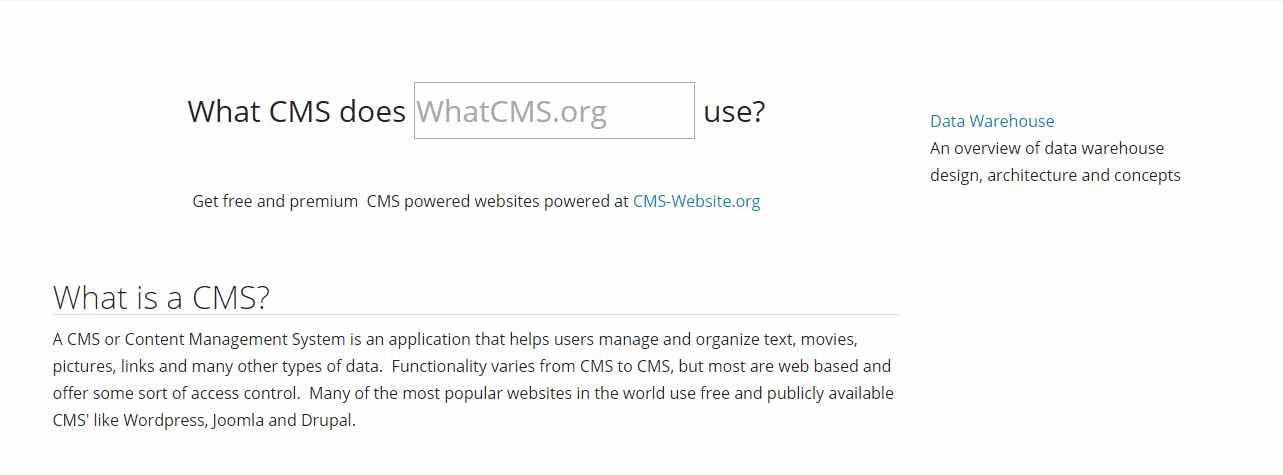
A popular detector that can recognize more than 140 CMS's. At the same time, the service's database is constantly updated.
IsItWP.com
The service provides a large amount of data about sites created on the basis of WordPress: the plugins used, the design theme, plugins, hosting, and other information.
Allora.io
The service is able to recognize more than 2 thousand CMS and frameworks. It also provides recommendations for choosing the best themes and plugins.
OnlineWebTool.com
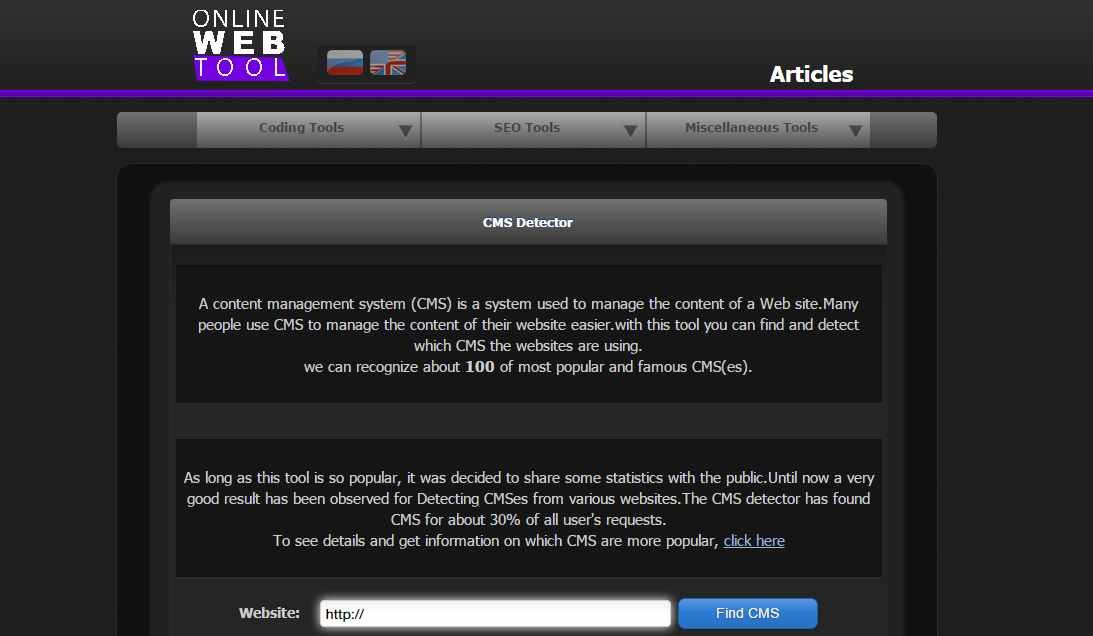
The service includes a complete set of tools for determining the design themes used on websites and related information. This detector also allows you to compare it with your competitors sites.
Wappalyzer
An extension for the Google Chrome browser that allows you to determine the CMS used on the site and related information.
Defining WordPress Design Themes
There are a number of tools available for determining the WordPress themes used on websites.
WP Theme Detector
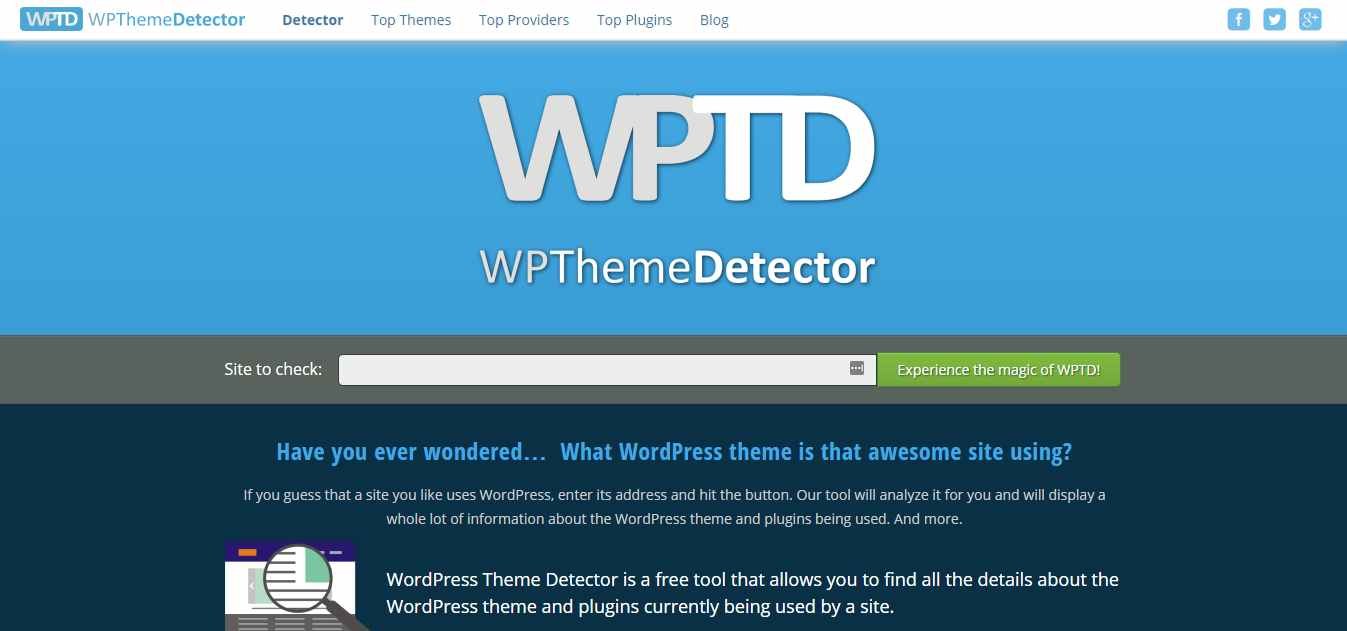
Just paste the URL of the resource you like into WPThemeDetector, and it will provide you with complete information about the WordPress theme and plugins installed on the site. The service also offers a list of the best design themes and plugins with detailed information from developers.
Built With
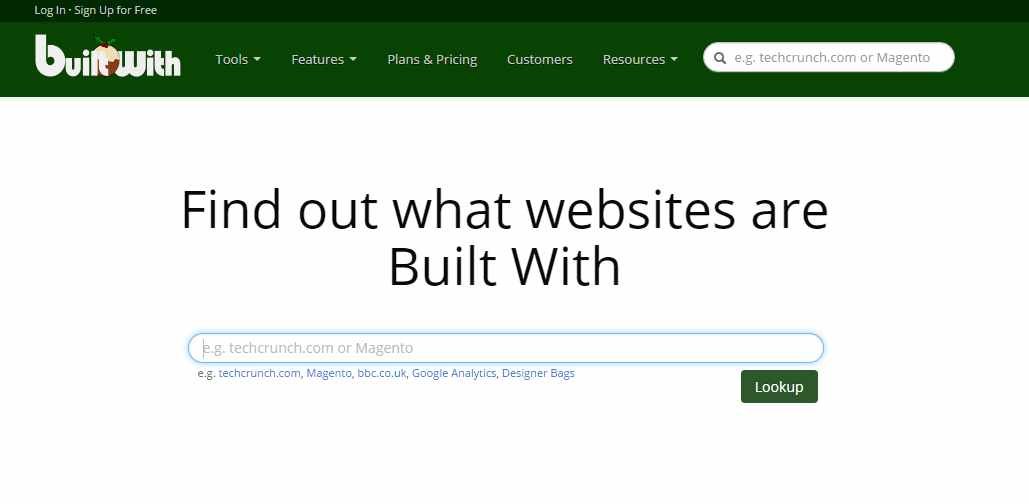
The service provides technical information about the requested site: server, design theme, hosting, SSL certificates, etc.
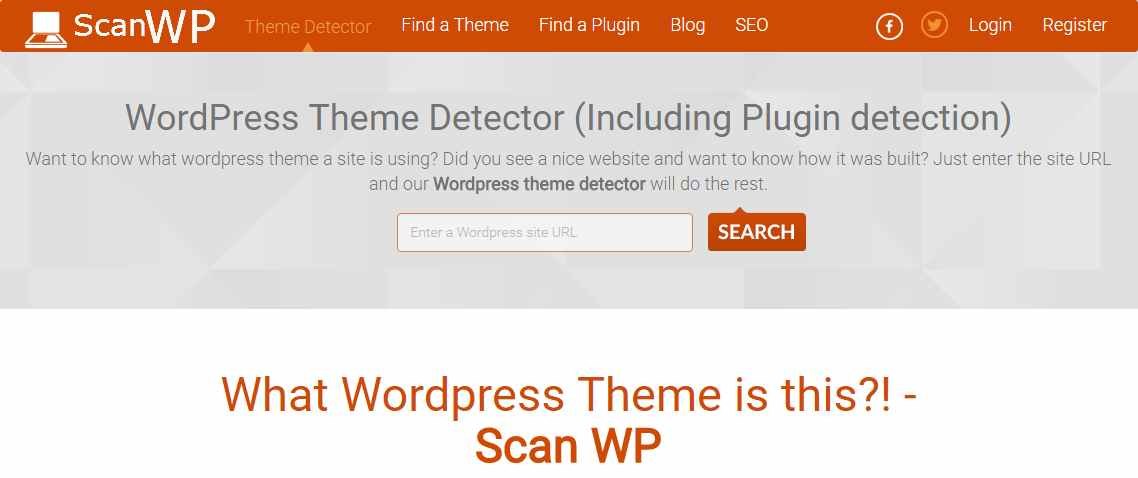
Scan WP
The range of data provided by the service includes statistical information about how many sites use a particular plugin or design theme.
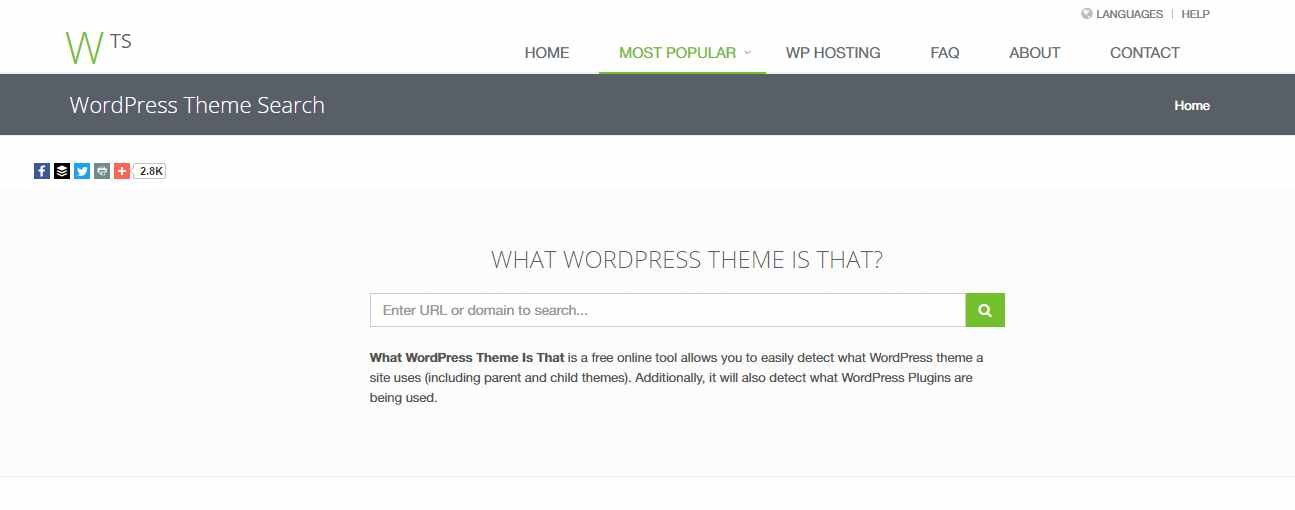
What WP Theme Is That
The web service detects not only the active WordPress theme, but also any child themes. It also provides complete information about the plugins installed on the site.
Whattheme.com
This WordPress theme detector detects:
- URL of the topic.
- Author of the topic.
- URL of the author's website.
- The theme version.
- License
- URL of the license.
- Tags.
- Description of the topic.
This tool also detects information about the design themes of websites based on other CMS systems: Shopify, Drupal, etc.
Themesinfo.com
It is a marketplace for WordPress design themes. The tool provided by them allows you to define the design themes and plugins that the site uses.
Google Chrome extensions for defining WordPress themes and plugins
The Google Chrome browser offers a number of extensions for analyzing sites created on the basis of WordPress.
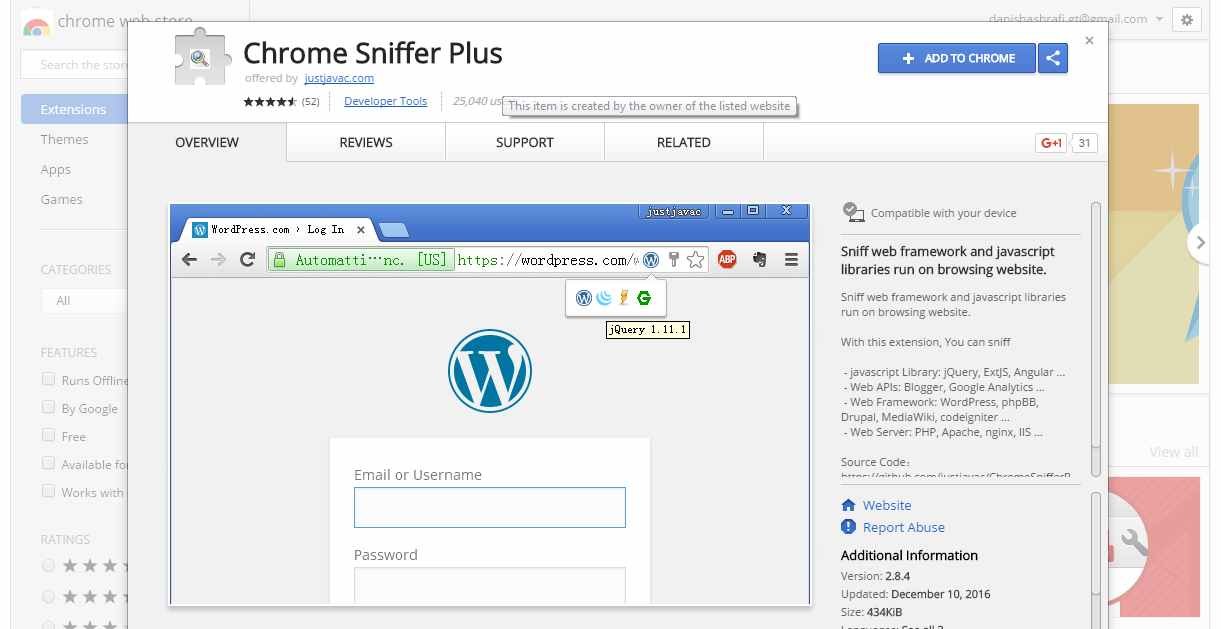
Chrome Sniffer Plus
The extension defines the JavaScript libraries used on the site, as well as versions of WordPress, Angular, phpBB, Drupal, Apache, and NGINX.
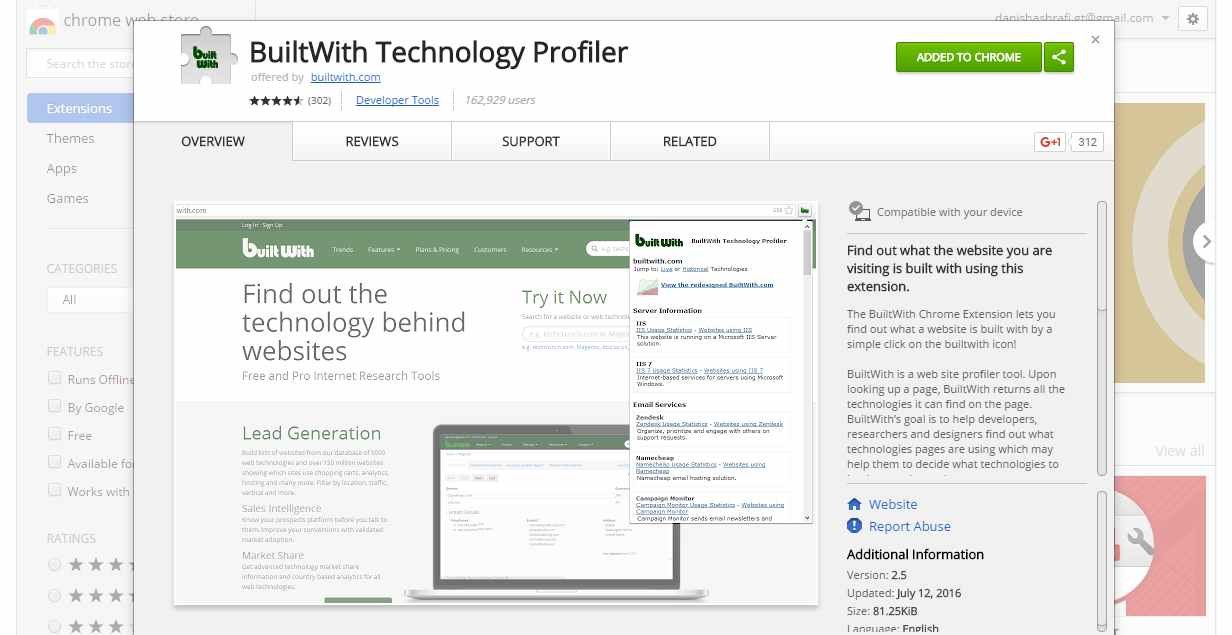
Built With Technology Profiler
This extension provides detailed information about the site opened in the browser tab.
WPSniffer - WordPress Theme Sniffer
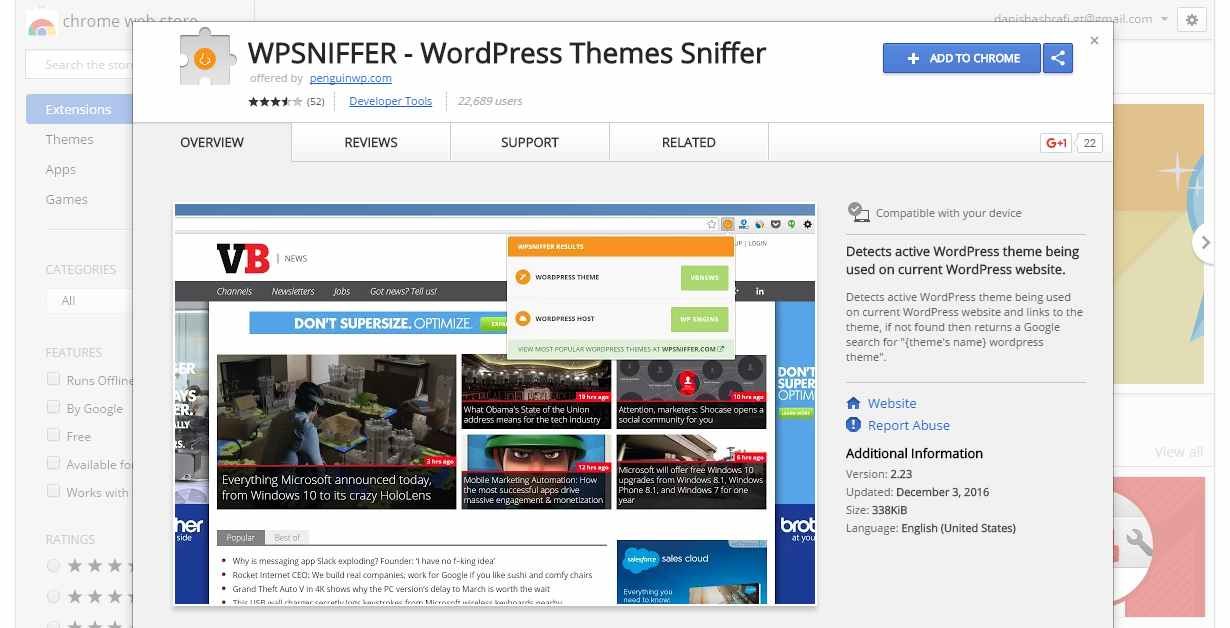
Using the WPSniffer extension, you can determine the active WordPress theme installed on your site.
Define a WordPress theme manually
Many sites block all attempts to determine the installed design theme and plugins used. In such cases, follow these guidelines.
Viewing the footer
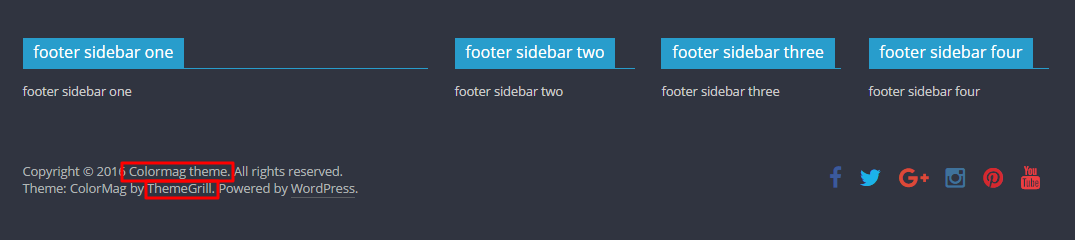
Some web developers don't even bother to change the initial text and links in the footer. Then you can read the name of the design theme and information about its developer at the bottom of the site page.
Scanning the source code
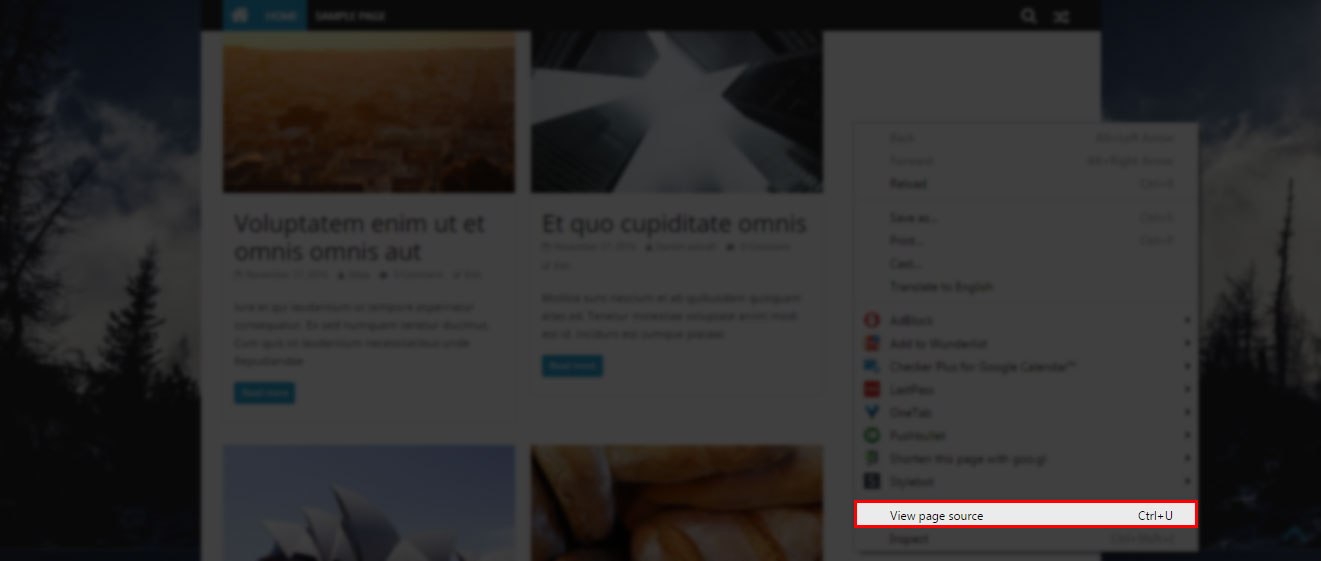
Right - click on the page of the site of interest and select "View the page source code".
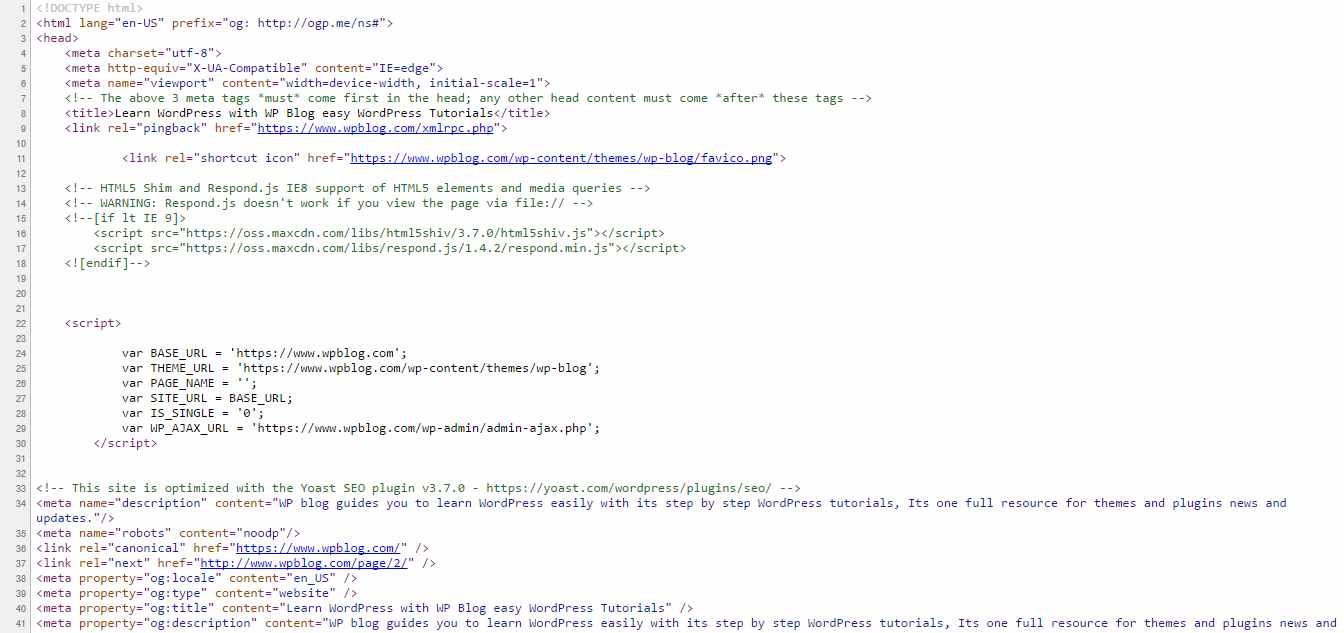
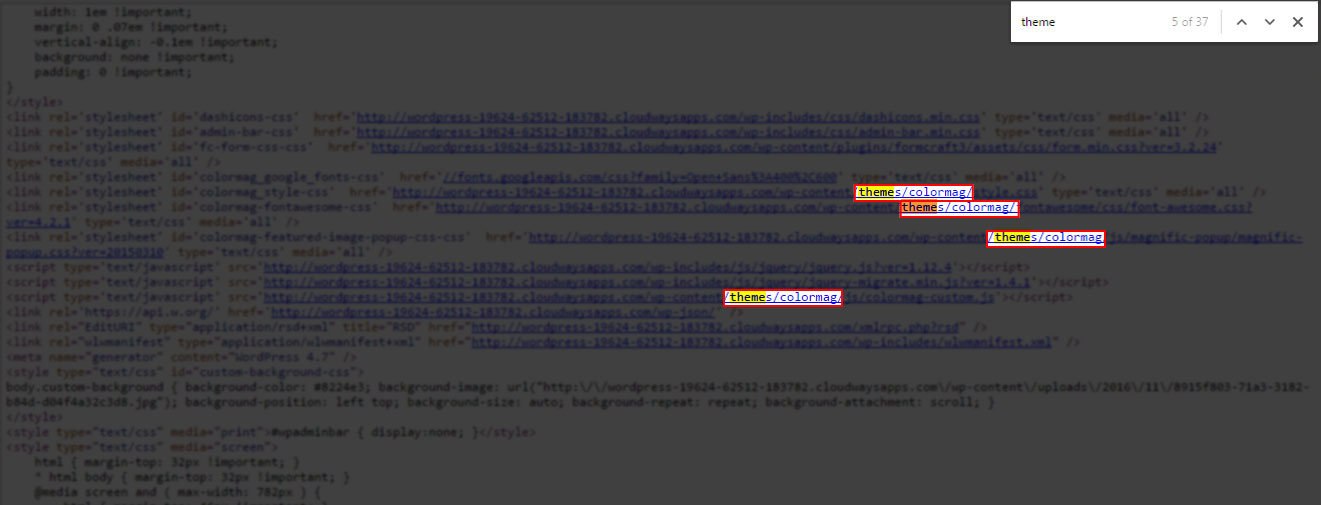
The source code often contains links to external and internal library and CSS files.
You can find the name of the design theme you are using by searching for the term theme.
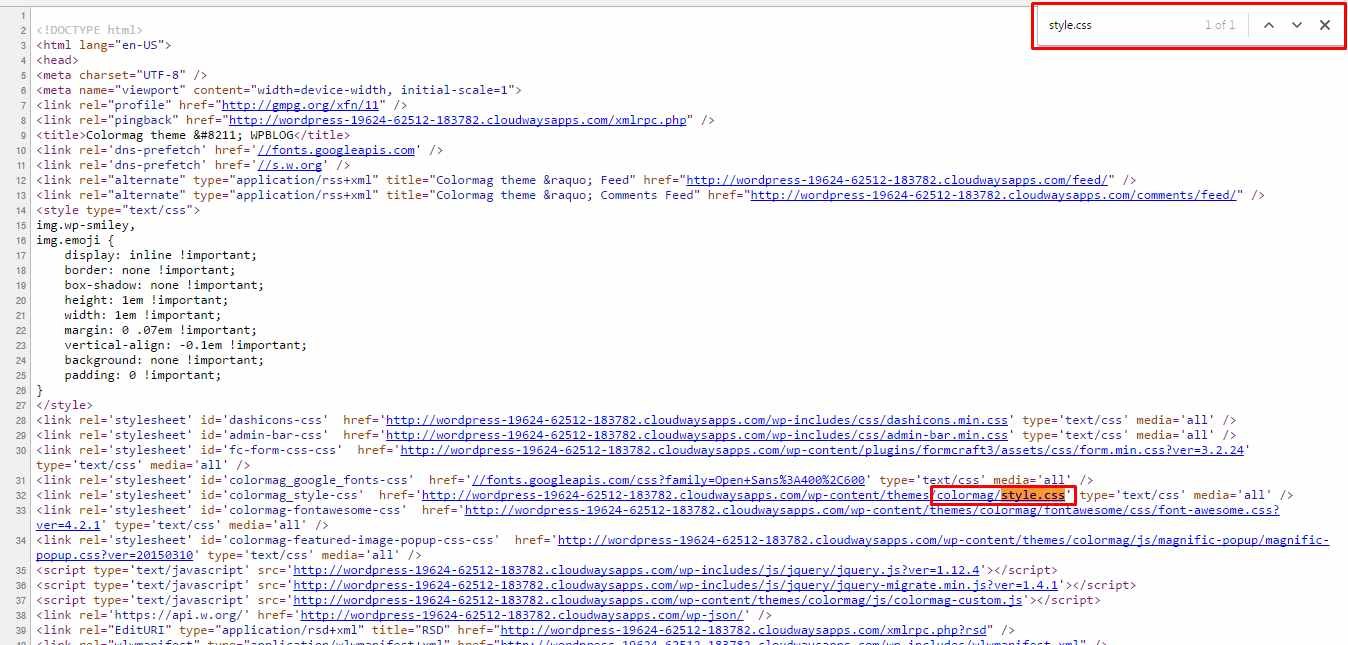
The second option is to find the CSS file associated with this resource page. On almost all WordPress sites, this file is called style. css. Most often it is located in the wp-content/themes directory .
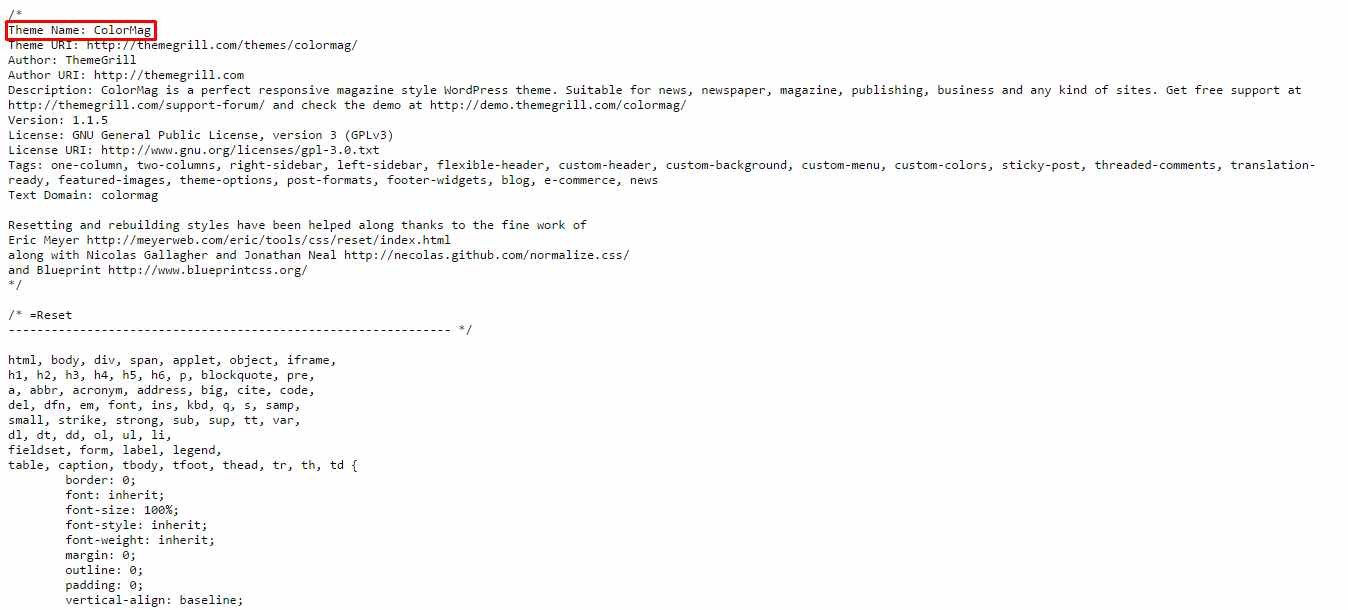
When you open the style, css file, you can easily find the name of the design theme used on your site.
Conclusion
To save time, first create a list of competitor sites. To analyze them, use one or more of the tools described in this tool guide.
Please post your feedback on the current topic of the article. Thank you so much for your comments, feedback, subscriptions, likes, dislikes!
internet-technologies.ru