


Brother
Professional
- Messages
- 2,590
- Reaction score
- 542
- Points
- 113

If you are new to Steam, you may not be familiar with all the options for enhancing your account security.
In this article, we will look at various options of this kind.
Why care about Steam account security?
As a rule, those who have just got acquainted with Steam have few purchased games, so there is little need to worry about account security. However, in the long run, this strategy can be flawed and, ideally, the account should be protected immediately after registration.Protecting future purchases
The most obvious reason for enhancing security is to protect the games you buy in the future. It is quite common for the Steam store to have various sales when games are obscenely cheap. Accordingly, it won't take long to put together a decent collection.If an attacker manages to hack into your account, he will gain access to the entire library until you take measures to recover the unbearable gain. Thus, by protecting your account now, you will save yourself headaches in the future and keep your purchased games safe.
Additional features
Certain features on Steam are locked down until you increase your account security. Even if you do not care about the safety of the purchased collection of games, the hidden functions can be very interesting.Steam is more than just a video game store. In the virtual marketplace, users can sell cosmetics and collectibles for real money. Accordingly, account protection must be given even more attention to prevent attackers from gaining access to your account and launching a sale.
To protect against this kind of fraud, users who do not have Steam Guard enabled cannot participate in trading. Even after activating Steam Guard, it takes 15 days for all the necessary features to become fully available. Thus, you should take care of your safety as soon as possible.
What is Steam Guard?
Steam Guard was mentioned in the previous paragraph. This tool is the best way to improve the security of your account and is one of the easiest ways to protect your game library.Steam Guard uses two-factor authentication tied to an email address or mobile app. If you log in to a new computer, depending on the settings, the system will ask you to enter a code sent by e-mail or through the application.
Steam Guard is so secure that even Gabe Newell, CEO of Valve, made his account public during the public release of the system, and anyone could gain access to the account in the event of a breach. However, Gabe's account turned out to be safe and sound.
Method # 1: Email Authentication
You can configure Steam Guard so that when you log in from a new location, a message is sent to your email. A verified email address is required to activate this feature.
First, you should check your inbox for letters with a link that you need to click to confirm your email address. Next, you need to exit Steam and restart the application two times. To completely exit Steam, right-click on the icon located on the taskbar and select Exit.

After the above manipulations, Steam Guard performing should be automatically activated in your account. Otherwise, in the upper left corner, click on the Steam section and then select Settings.
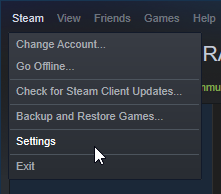
Now click on Manage Steam Guard Account Security to check if Steam Guard is running.
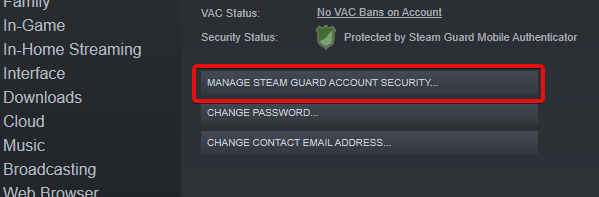
By the way, at the same time, you can enable two-factor authentication during authorization in the mail service.
Method # 2: Authentication via mobile app
If you prefer to use your phone instead of checking your email, you can use the Steam mobile app for two-factor authentication. You just need to link your account to the application.
First, depending on the mobile operating system you are using, download the iOS or Android app. Then log in to the app using your account. Next, click on the icon on the left and select SteamGuard.
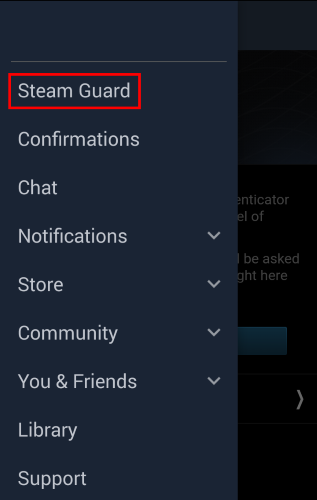
Click on the Add Authenticator button.
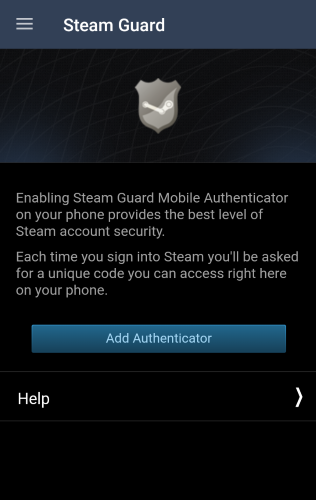
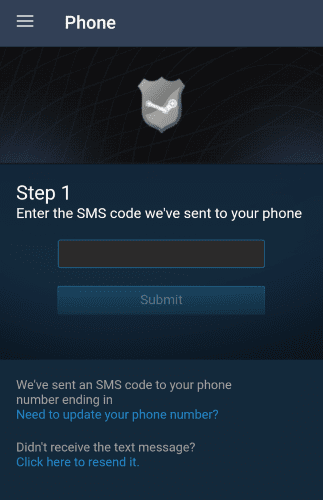
If a mobile number has already been added in your account settings, Steam will automatically send the code via SMS. Otherwise, you must first provide a phone number.
The received number will be needed during authorization.
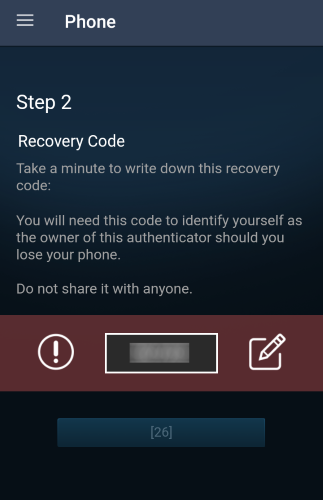
In addition, you will be given a recovery code that you need to write down and keep in a safe place in case you want to abandon the authenticator.
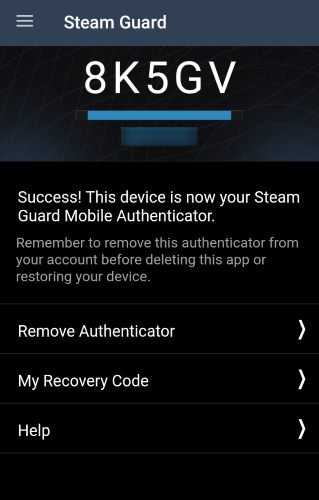
Now, every time you log in from a new location, you will need to enter the code that appears in the mobile application under the Steam Guard label.
Adding a phone number
If you provide a phone number, if your account is stolen or your password is lost, Steam will be able to send text messages to recover your account. In addition, you can move the Mobile Authenticator to another phone.
Go to Steam, click on your username in the upper right corner and select AccountDetails.
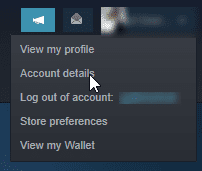
Next select Add a phone number.
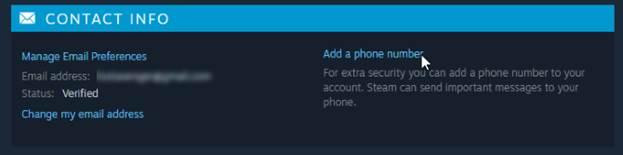
Here you can enter your mobile phone verification number, after which Steam can use your device as a backup security tool.
Authorization on third-party sites using Steam
Sometimes the site may ask you for your Steam login. Typically, this functionality is implemented on sites that scan your purchases in order to provide a specific service.
If a legitimate site asks for your login used on Steam, then it makes a similar request using specially provided and allowed functionality. Next, you are redirected to the Steam Community page, where you can log in.
By using this method, your account will not be disclosed to a third party site. Accordingly, you should not worry about hacking. After authorization, Steam will inform the site about the list of your goods and games without disclosing confidential information.
If the site requires your account information, click on the icon shown in the image below.

Next, you will be redirected to the Steam Community page for secure login.
Of course, an attacker could copy this image and redirect you to a fake site. Accordingly, you should remain vigilant and verify that the redirect is being made to https://steamcommunity.com/ using an HTTPS certificate. Otherwise, as you can imagine, you should not enter credentials.

In addition, never enter an account on sites that do not use officially authorized functionality. A legitimate and useful website will always use only legal methods.
Conclusion
Steam is one of the best services in the gaming industry. On the other hand, any popular site constantly attracts the attention of cybercriminals. However, the Steam developers have worked well with security measures to protect your account.
After reading the article and following all the recommendations, your Steam account should become much safer.
(c) securitylab.ru


