BitBrowser Anti - Detect
Professional
- Messages
- 393
- Reaction score
- 4
- Points
- 18
Step 6: Update or reinstall the app
If the app is broken, you can waste hours typing passwords into a broken login screen.Do this:
· Update X from the App Store / Play Store.
· If that doesn’t work, uninstall X and reinstall it.
· Restart your phone after reinstalling. Not optional. It clears weird session junk.
Also, if you’re using an ancient OS version, the app can become flaky. Just saying.
Step 7: Reset your password safely
If you’re not 100 percent sure your password is right, stop guessing. Guessing can trigger lockouts.Use:
· Forgot password? on the login screen.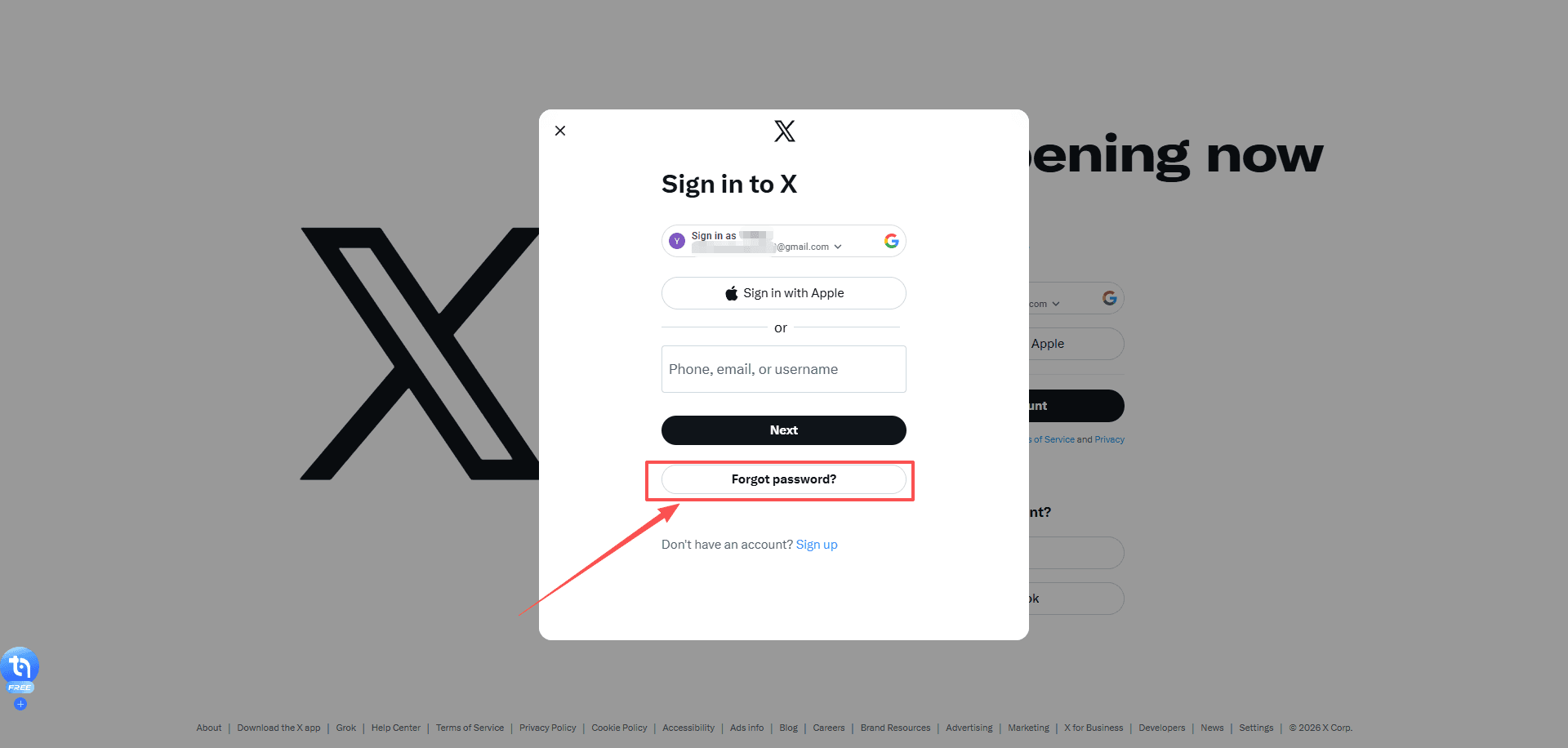
A few notes that matter:
· If you don’t get the reset email, check Spam, Promotions, and All Mail.
· If you used a phone number, you might get an SMS link instead.
· Open the reset link on the same device you plan to log in with.
When you create a new password:
· Make it unique.
· Don’t let your keyboard auto insert spaces.
· Save it in a password manager immediately.
Then try logging in again.
Step 8: Fix 2FA problems (this is usually the real issue)
This is the part that makes people panic because you can have the correct password and still be locked out.If 2FA is blocking you, fix 2FA:
Scenario A: Authenticator app codes don’t work
Common causes:
· Your phone time is slightly off
· You switched phones and lost the authenticator seed
· You’re entering a code for the wrong account
Fixes:
· Turn on automatic time on your phone (date and time settings). This can often be resolved by checking your time settings for accuracy.
· In Google Authenticator, Microsoft Authenticator, Authy, etc. make sure you’re using the entry for the correct X account.
· Try 2 or 3 fresh codes, not the same one.
Scenario B: SMS codes never arrive
Try:
· Switch from Wi-Fi to mobile data.
· Restart your phone.
· Wait 2 minutes and request again. Don’t spam requests 10 times.
· Check if your carrier blocks short codes, or if you have SMS filtering apps enabled.
If SMS still fails and you don’t have backup codes, keep reading.
Scenario C: You lost your 2FA device and have no backup codes
This is where X can take longer than 10 minutes, depending on what recovery options you set up. But you can still move fast.First, check whether you have backup codes. These are one-time codes generated when you enable 2FA in the X iOS or Android app, or later on X.com. They’re meant for exactly this situation and are not the same as temporary passwords.
Your options:
· If you’re logged in on any other device, go there first. You can disable 2FA or generate new backup codes from Settings → Account → Security.
· If you’re not logged in anywhere, your only option is account recovery through X support.
Note: If SMS text message two-factor authentication is your only 2FA method and you’re still logged in, you can remove your phone number in Mobile settings on X.com. Click Delete my phone, and SMS-based 2FA will be automatically turned off.
Step 9: Check if your X account is locked, limited or compromised
Sometimes you can’t log in because X detects suspicious activity on your account. Depending on the situation, your account might be locked, limited, or compromised.Scenario A: Locked account
Common signs:
· Messages like “Locked out!”
· Alerts about a “Suspicious login attempt” or “Unusual activity”
· Prompts to verify your email or phone number
How to fix it:
· Follow the on-screen verification steps.
· Check your email for security alerts from X and approve any actions if required.
· If you used a VPN, turn it off and try logging in from a normal network.
If verification gets stuck or won’t complete, clear your cookies (Step 5) and try logging in from another device (Step 3).
Scenario B: Limited account
X may temporarily restrict certain actions if it detects suspicious or potentially rule-violating behavior.Common Signs:
You may be unable to tweet, follow new accounts, or perform other normal actions, and you might see alerts about account limits.Fix:
If your account is limited or suspended, you’ll usually see a message when logging in explaining the restriction. Follow the on-screen instructions to appeal or restore access.Scenario C: Compromised account
If your account has been hacked or phished, X may proactively reset your password to block unauthorized access. In these cases, you’ll receive an email with instructions on how to reset your password. Follow the steps in that email to regain access if you can’t log in.Common Signs:
· Unexpected posts or messages sent from your account
· Actions you didn’t approve (following, unfollowing, blocking)
· Notifications that your account may be compromised
· Password no longer works or account info changed without your knowledge
Steps to secure your account:
· Change your password immediately (Settings → Password or Forgot Password if logged out) and revoke app access on iOS/Android.
· Secure your email and reverse any unexpected changes from verify@x.com emails.
· Revoke unknown third-party app access. For X Pro Teams, check member lists for unfamiliar users.
· Update passwords in trusted third-party apps that use your X password.
· Extra precautions: Delete unwanted posts, scan for malware, install updates, enable 2FA, and don’t share credentials.
· Contact Support if you still can’t log in; include your username and last access date.
How accounts get compromised:
· Weak or reused passwords
· Malicious third-party apps or websites
· Malware or viruses on your devices
· Accessing X on unsafe networks
Even if unusual activity is caused by app bugs, changing your password and revoking app access stops it. Act quickly to minimize risk.
Step 10: Do a “clean room” test
This is the fastest way to prove whether it’s your device or your account.Do this exactly:
1. Use a device you rarely use (or a fresh browser profile).
2. Use Incognito/Private mode.
3. Turn off VPN.
4. Use mobile data if possible.
5. Go straight to https://x.com/login
6. Enter credentials carefully (copy paste from password manager if you have one)
Outcomes:
· If it works here: your normal browser/app environment is the problem. Extensions, cookies, cached sessions. Fixable.
· If it fails everywhere: it’s either credentials, 2FA, or an account restriction.
At that point, stop trying random stuff. You’ll just trigger security checks.
The fastest “10 minute” order (if you want the short version)
If you just want the speedrun, do this:1. Check if X is down
2. Try login on another device/browser
3. Disable VPN and blockers
4. Clear x.com and twitter.com cookies
5. Update or reinstall the app
6. Reset password (don’t guess)
7. Fix 2FA (time sync, backup codes, recovery)
That flow solves most cases.
Common weird issues and what to do
“Login successful” then instantly logs out
Usually cookie/session corruption.Fix:
· Clear cookies for x.com and twitter.com.· Disable extensions.
· Try another browser profile.
“Something went wrong. Try again.”
Could be:
· X outage· Network filter
· DNS block
· Browser extension breaking scripts
Fix:
· Try mobile data· Disable VPN
· Try a different browser
“Oops, something went wrong” only on Wi-Fi
That’s your Wi-Fi, router, or ISP level filtering.Fix:
· Restart router· Switch DNS to automatic (temporarily)
· Try mobile data
You’re sure the password is right, but it won’t accept it
Most likely:
· You’re on the wrong account identifier (email vs username)
· Your password manager is filling an old password
· Invisible whitespace got pasted
Fix:
· Manually type it once· Or reset password and move on
How to Prevent Future X (Twitter) Login Issues?
Most X login problems are not random. They are triggered when X’s security systems detect something that looks unstable, automated, or suspicious — even if you did nothing wrong.If you want to avoid seeing “cannot log into X (Twitter)” again in the future, focus on keeping your login environment stable, consistent, and clean.
Here are the practices that matter most:
1. Keep a stable login environment
Avoid constantly switching between devices, browsers, networks, and profiles when logging into X. Sudden changes in your device fingerprint, IP address, or location can trigger security checks or temporary blocks.Pick one main environment for your primary account and use it consistently whenever possible.
2. Avoid aggressive VPN or IP rotation on login
Cheap VPNs and constantly rotating IP addresses are one of the most common reasons accounts get flagged for “suspicious activity.”If you need privacy or IP control, use a stable IP rather than one that changes every session — especially when logging in.
3. Separate multiple X accounts properly
If you manage more than one X account (personal, business, client, or automation), never log them into the same browser profile.Sharing cookies, storage, and fingerprints between accounts is a very common cause of:
· Login loops
· Unexpected logouts
· Security challenges
· Temporary restrictions
Each account should have its own isolated environment.
4. Keep sessions and cookies isolated
Many login errors are caused by corrupted or overwritten cookies. This often happens when:· You reuse the same browser profile for multiple accounts
· You log in and out of different accounts repeatedly
· Extensions interfere with session storage
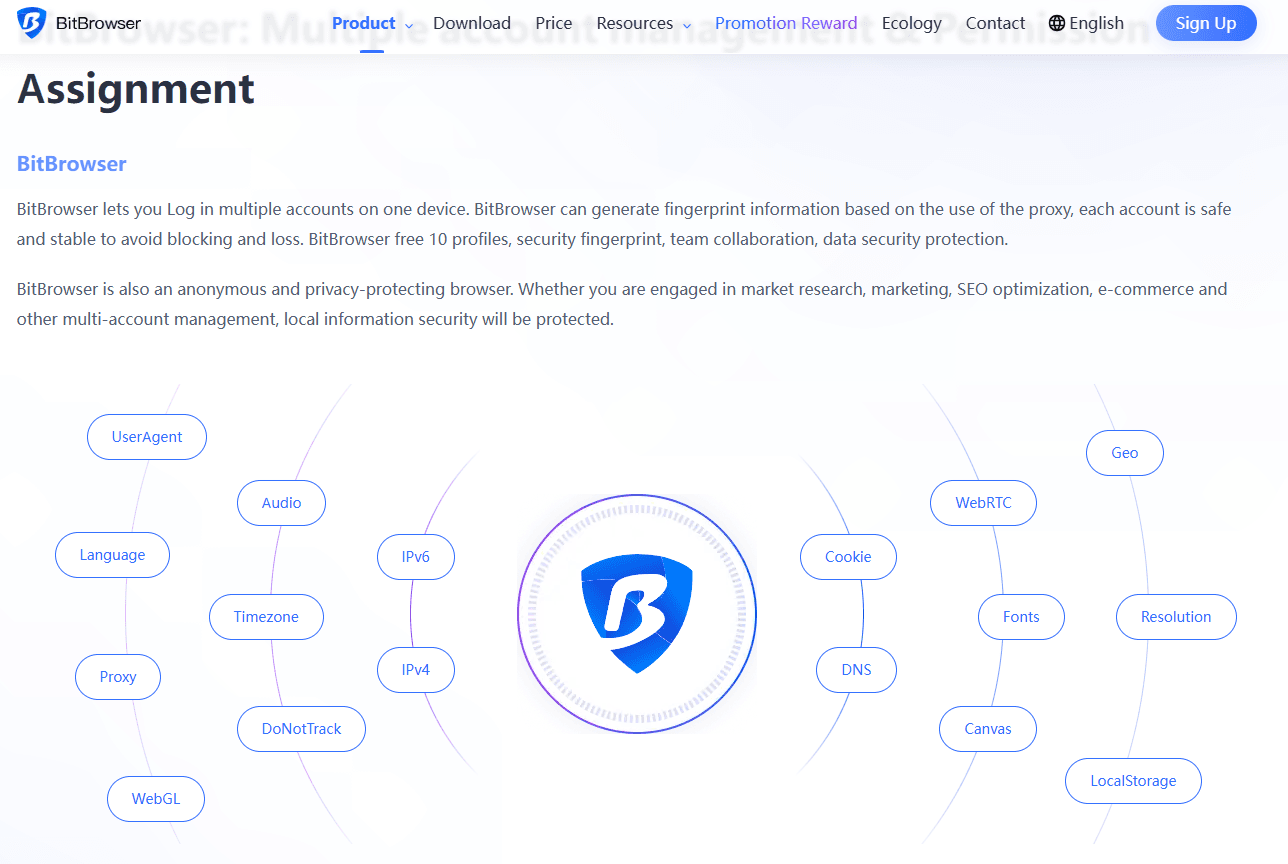
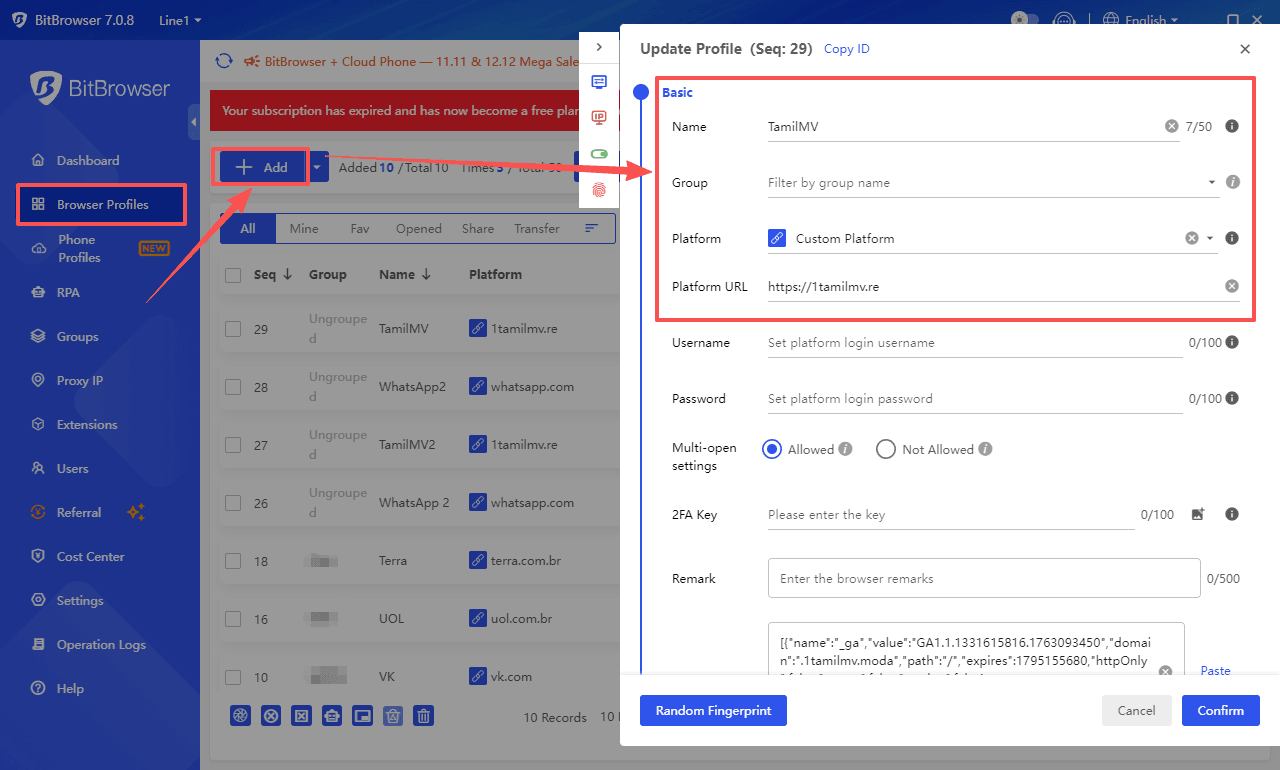
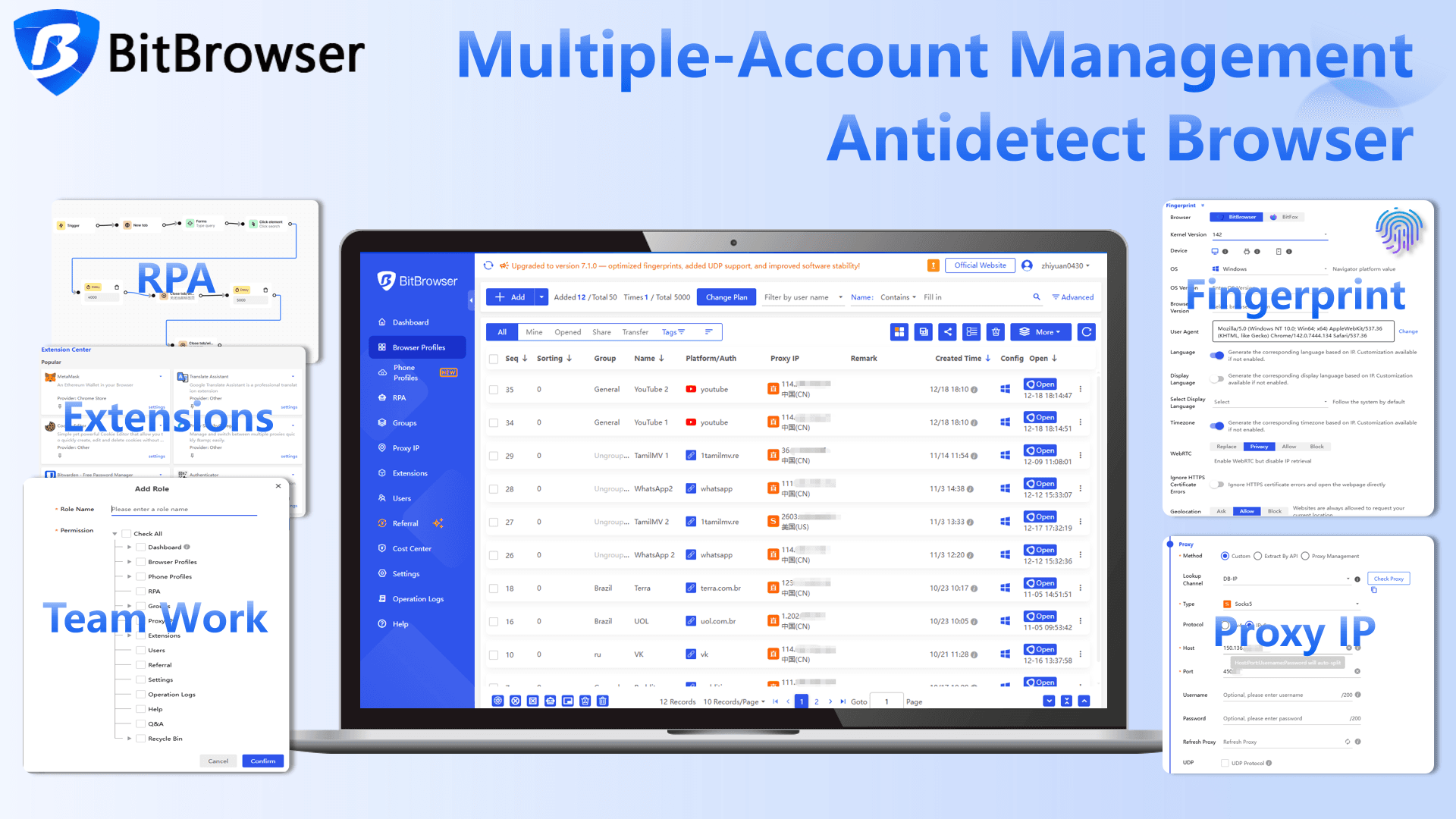
This is where using a professional anti-detect browser like BitBrowser becomes extremely useful.
BitBrowser
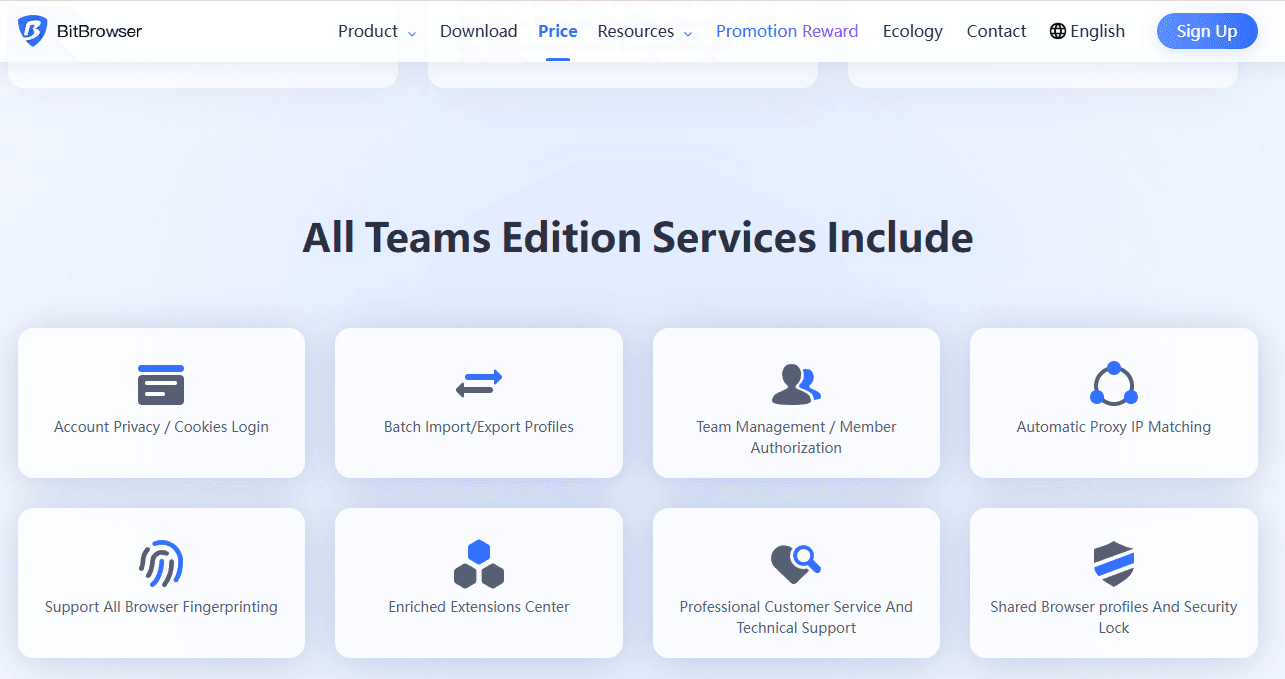
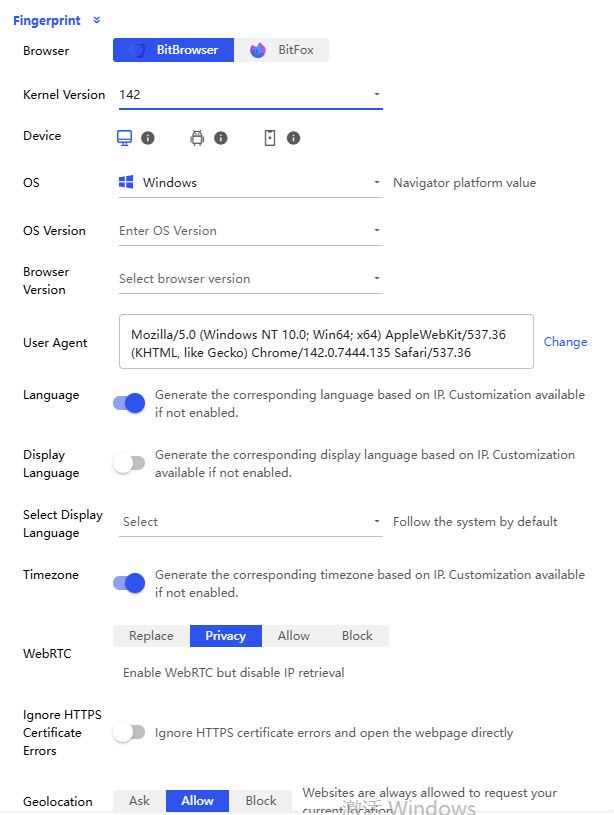
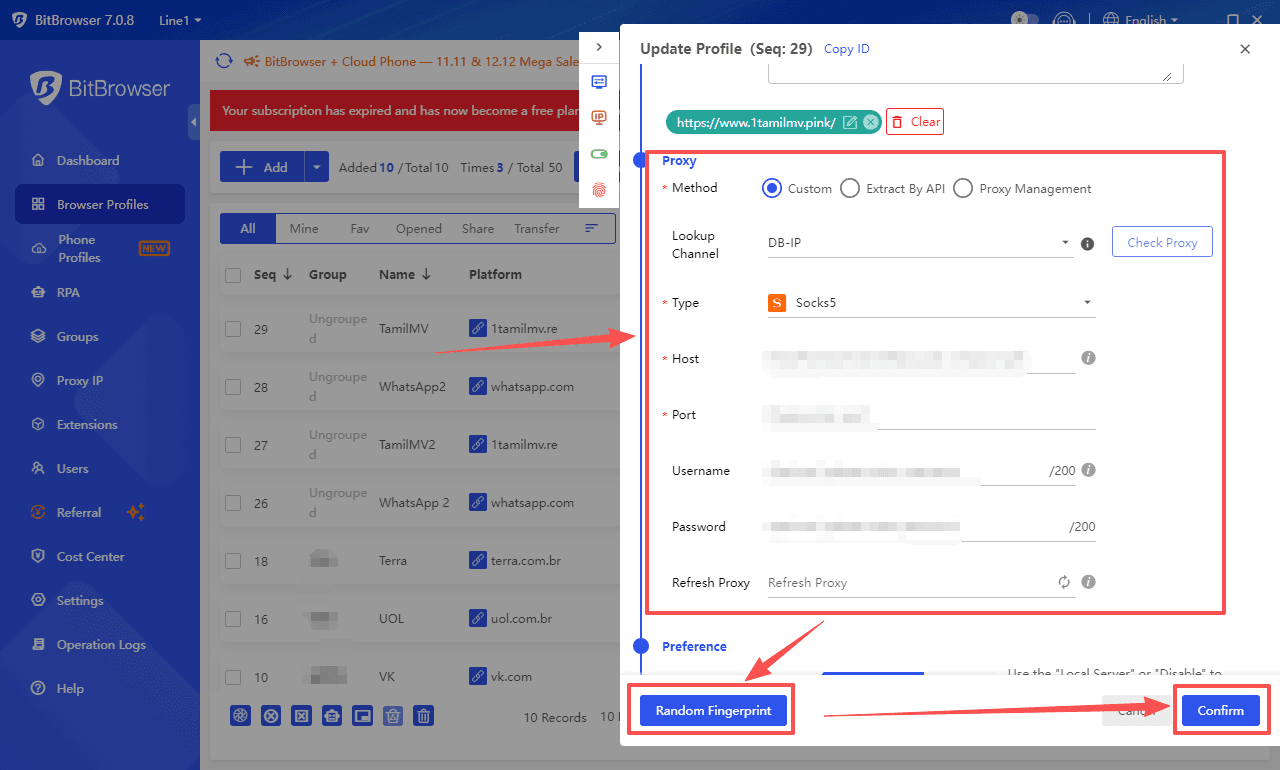
· Create isolated browser profiles with separate cookies, storage, and fingerprints· Assign a consistent IP or proxy to each profile
· Prevent cross-account contamination
· Maintain a stable, trusted login environment for each account
· Manage multiple X accounts safely without causing login issues
This dramatically reduces login loops, security flags, and account locks, especially if you manage multiple accounts or log in from different locations.
In simple terms: if X always sees you as the same “device + browser + network profile,” it has far less reason to block or challenge your login.
Try it yourself: BitBrowser provides 10 permanently free browser profiles.
Conclusion
Most X (Twitter) login issues are caused by incorrect credentials, 2FA problems, corrupted sessions, unstable networks, or temporary account restrictions.Following the checklist in this guide allows you to resolve most login problems.
If login issues keep returning, the cause is usually not your account but your environment. Keeping your setup stable and isolating accounts properly helps prevent repeated errors.
For users who manage multiple X accounts or work across different networks, using a tool like BitBrowser to isolate browser profiles and sessions can reduce login conflicts and security flags.
Fix the issue once, understand why it happened, and you are unlikely to face it again.
FAQ: X (Twitter) Login Issues
Why can’t I log into X even with the correct password?
Most commonly it’s 2FA failing, a cookie/session loop, or you’re logging into the wrong account (wrong email/username). Try logging in via a different device, then clear cookies for x.com and twitter.com, then verify 2FA.What should I do if I’m stuck in a login loop?
Clear cookies and site data for x.com and twitter.com, disable extensions, and try Incognito mode. Login loops are almost always broken cookies or a browser extension interfering.I’m not receiving the SMS login code. What can I do?
Switch to mobile data, restart your phone, wait a minute between requests, and make sure your carrier allows short code SMS. If possible, use backup codes or an authenticator app instead of SMS.Can I log into X without 2FA if I lost my phone?
Only if you have backup codes or you’re still logged in on another device where you can disable/reset 2FA. Otherwise you’ll need to use X’s account recovery prompts.What if X says my account is locked?
Follow the verification steps (email or phone). If it doesn’t work, try the process on a different network/device and make sure VPN is off. If you can’t complete verification, you may need to use X’s support and recovery flow.How can I manage multiple X accounts safely without causing login issues?
Managing multiple X accounts in the same browser or environment can lead to session conflicts and security checks. To avoid this, each account should run in a fully isolated environment.BitBrowser allows you to:
· Create isolated browser profiles with separate cookies, storage, and fingerprints
· Assign a consistent IP or proxy to each profile
· Prevent cross-account contamination
· Maintain a stable and trusted login environment for each account
This approach reduces login conflicts and lowers the risk of account restrictions when managing multiple accounts.
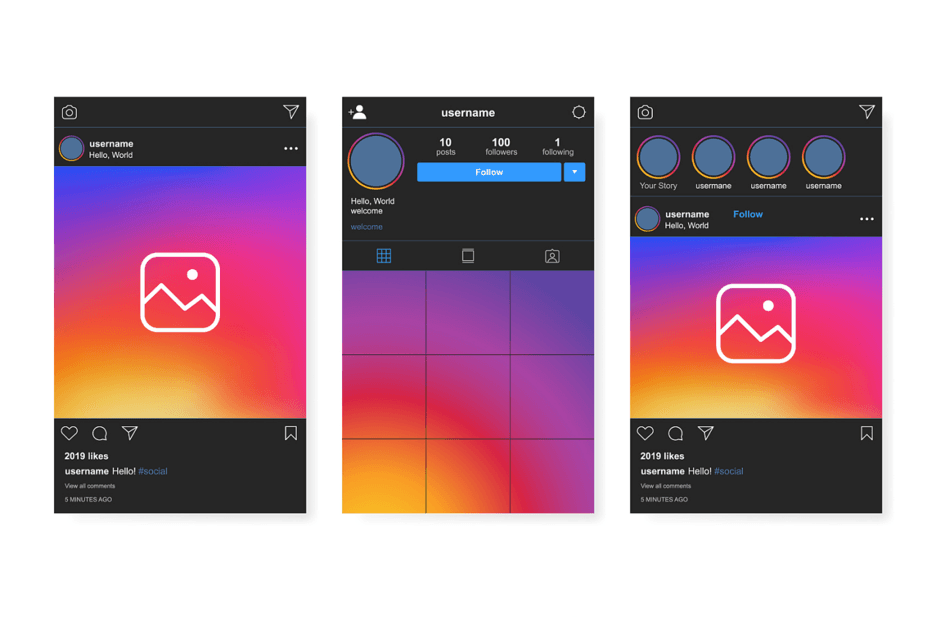
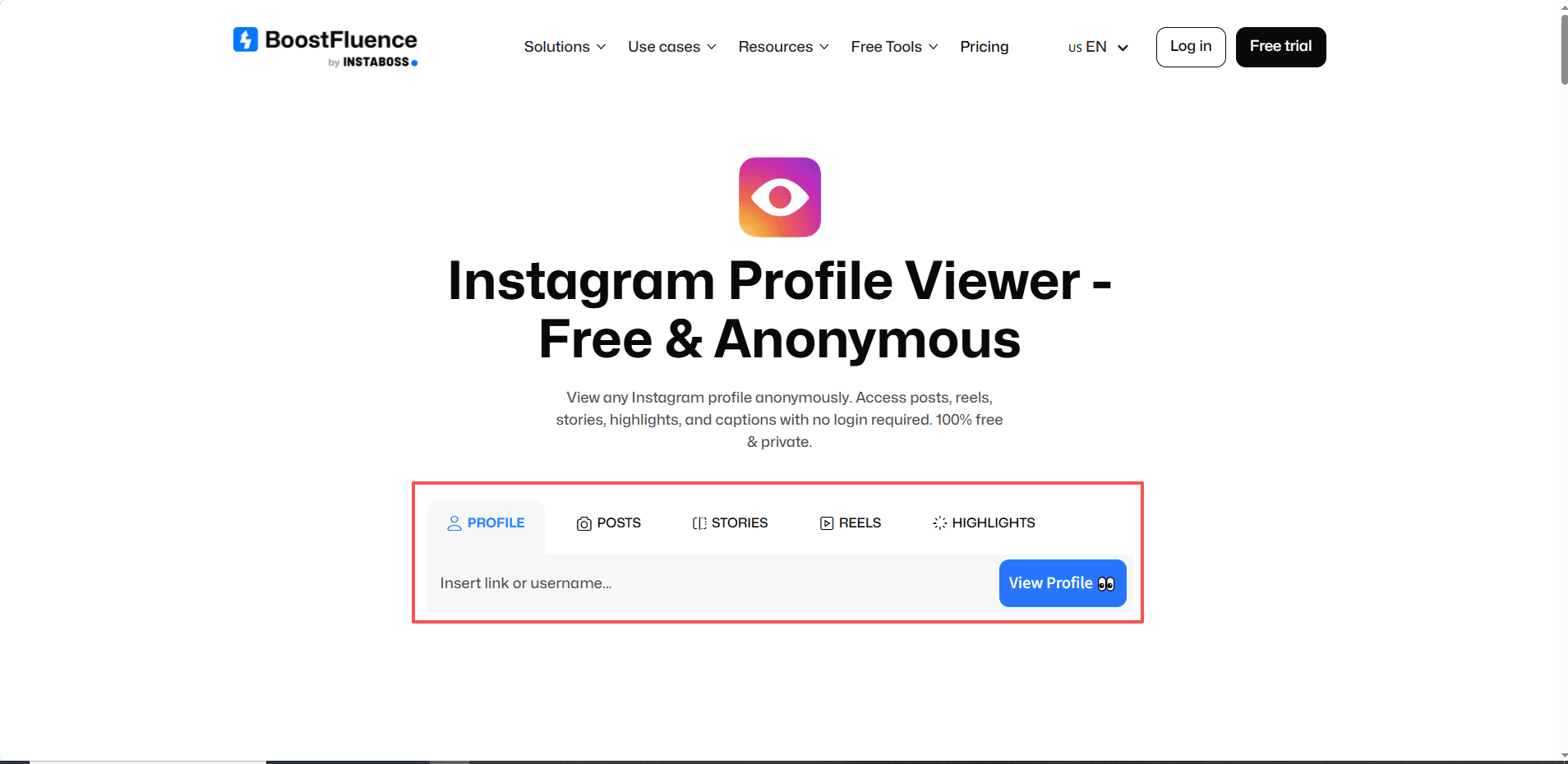
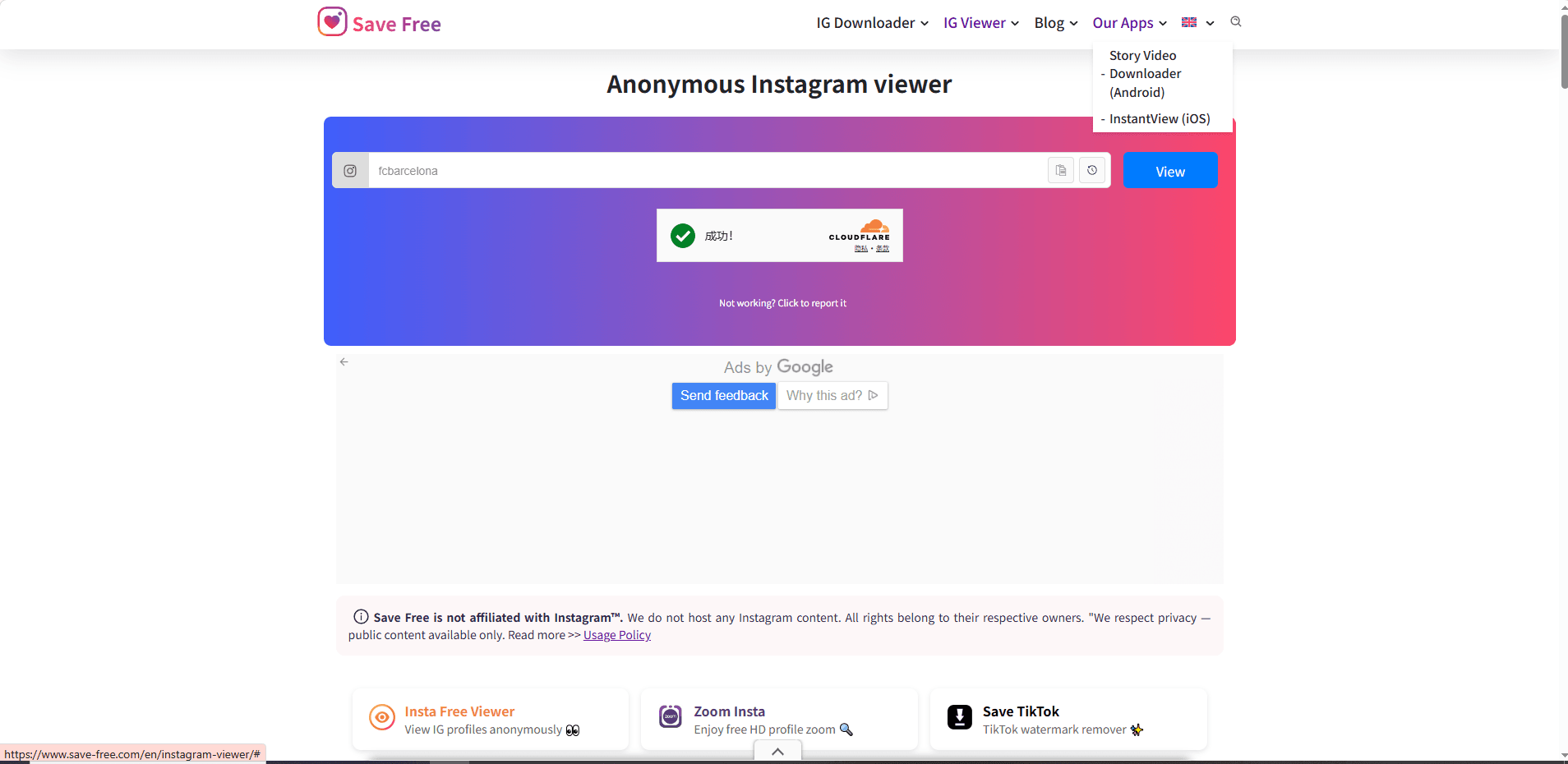

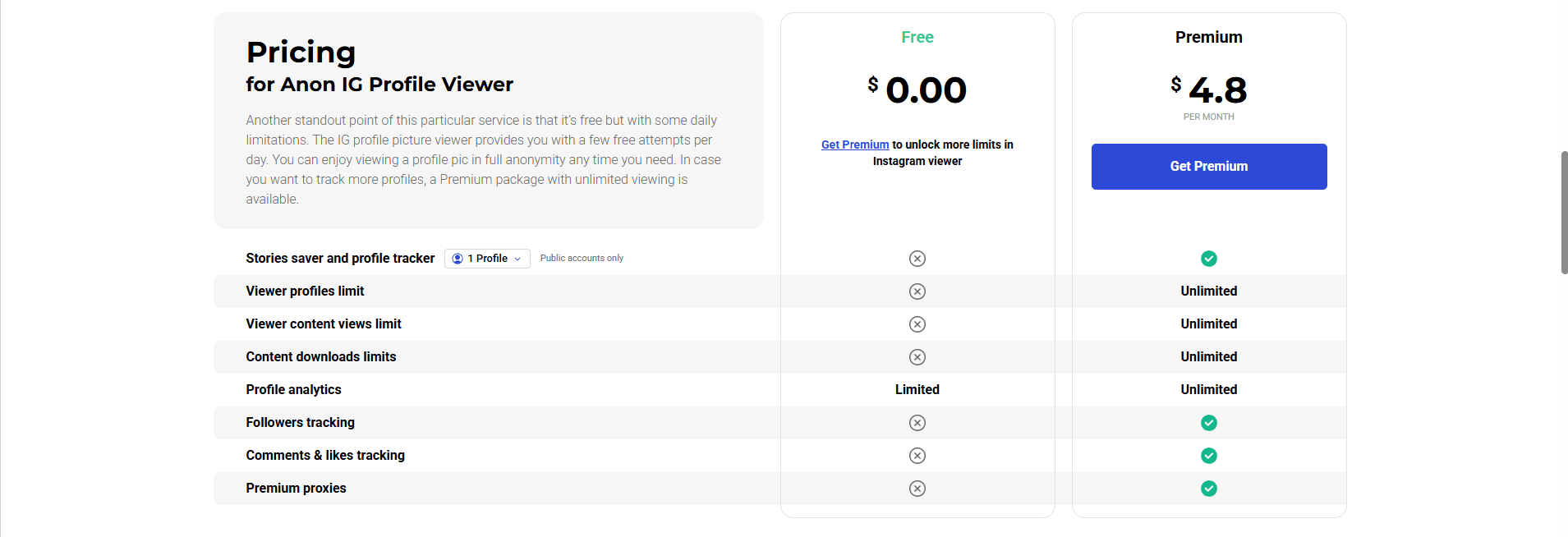
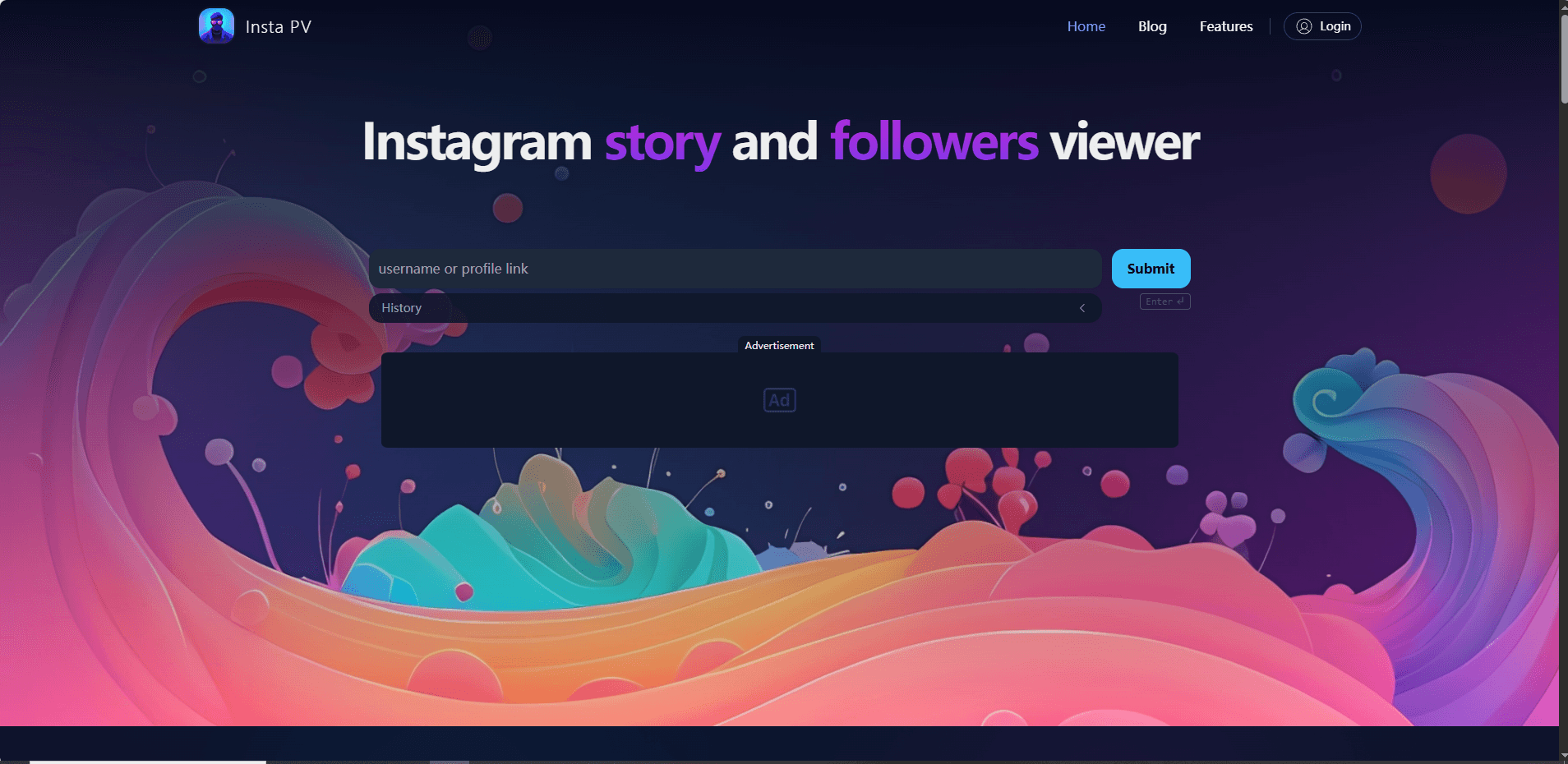
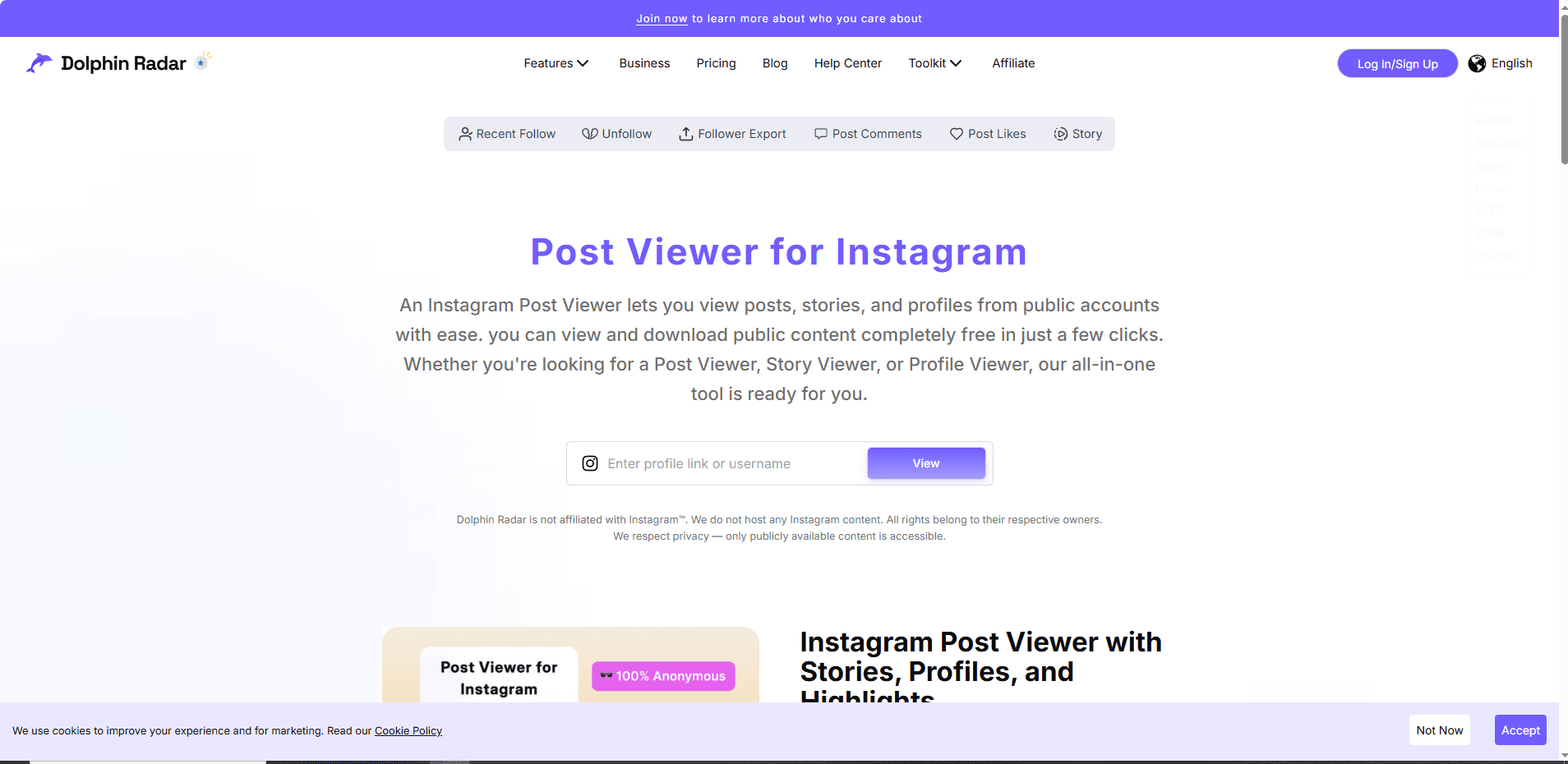
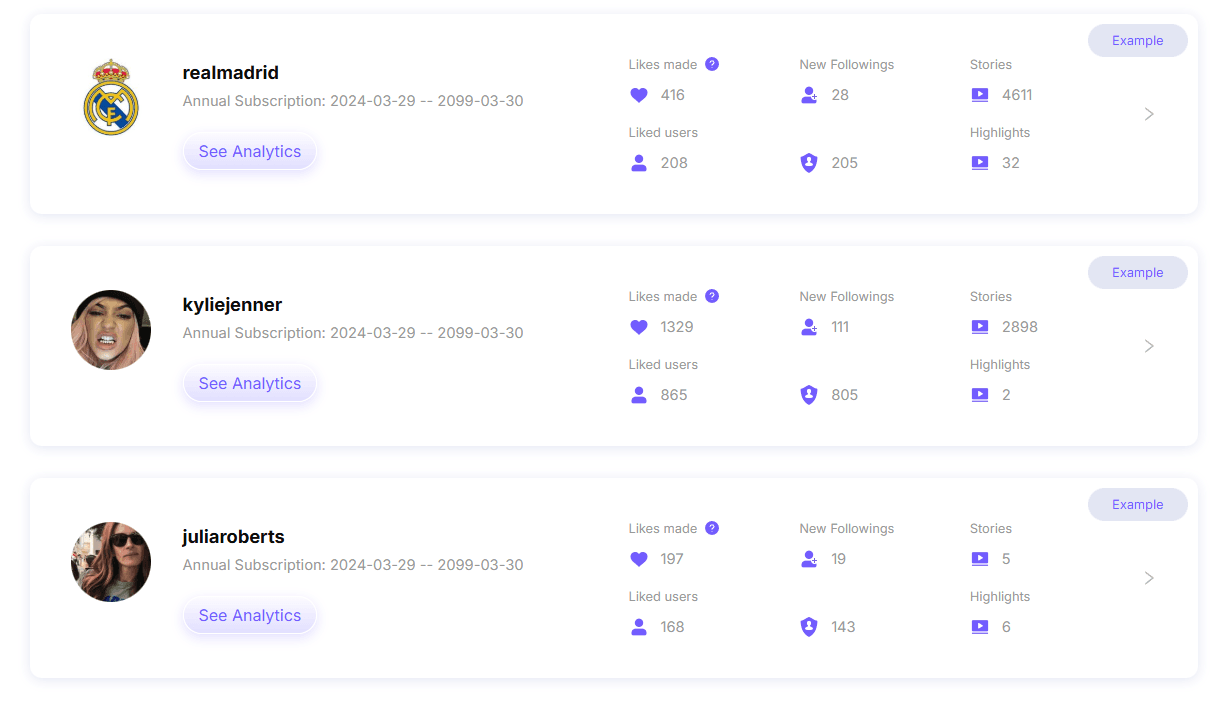
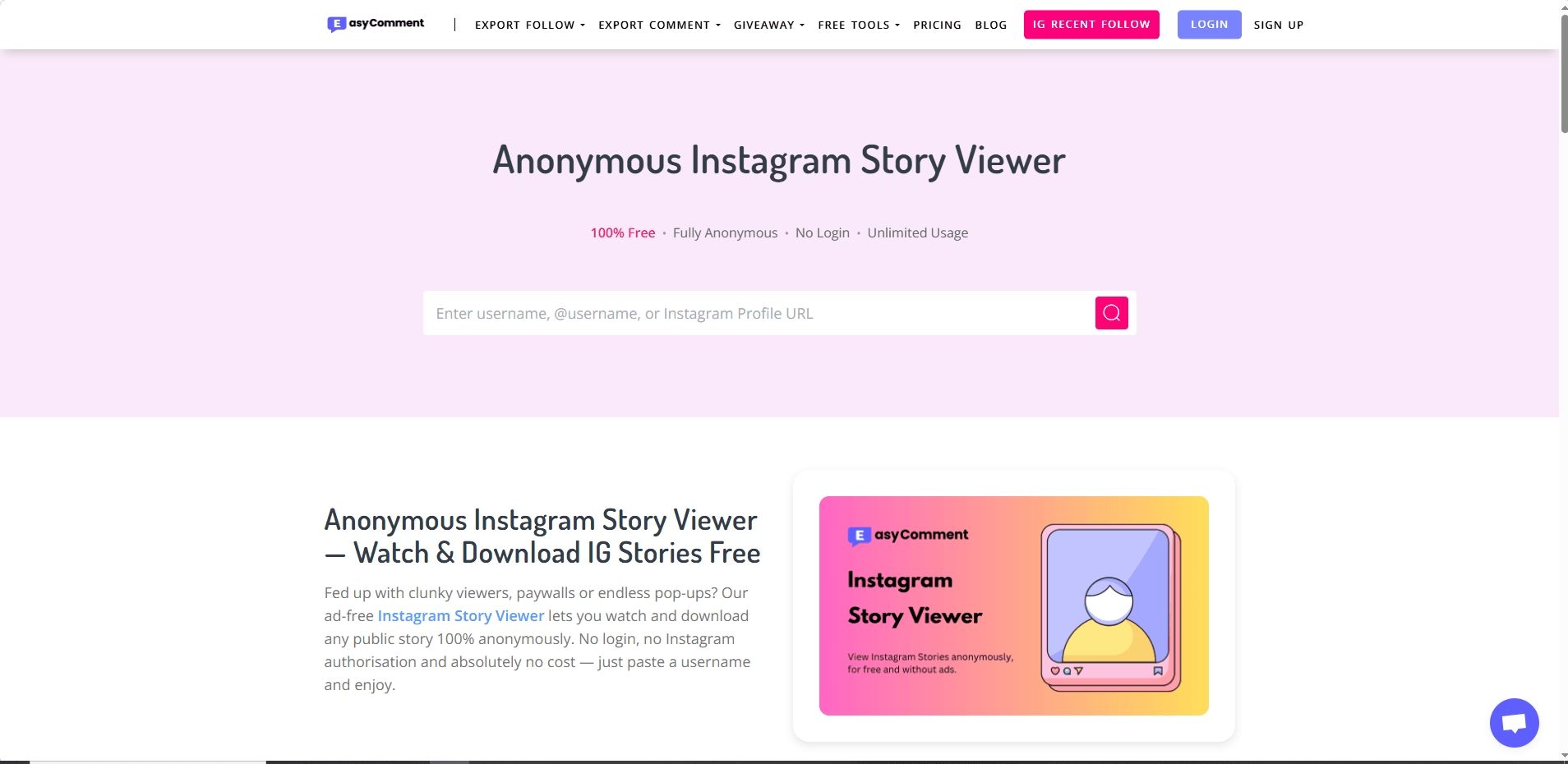
 Risk Note: Although these tools claim to be anonymous, using download features or frequent visits may pose privacy risks. They only access public profiles and cannot view private accounts.


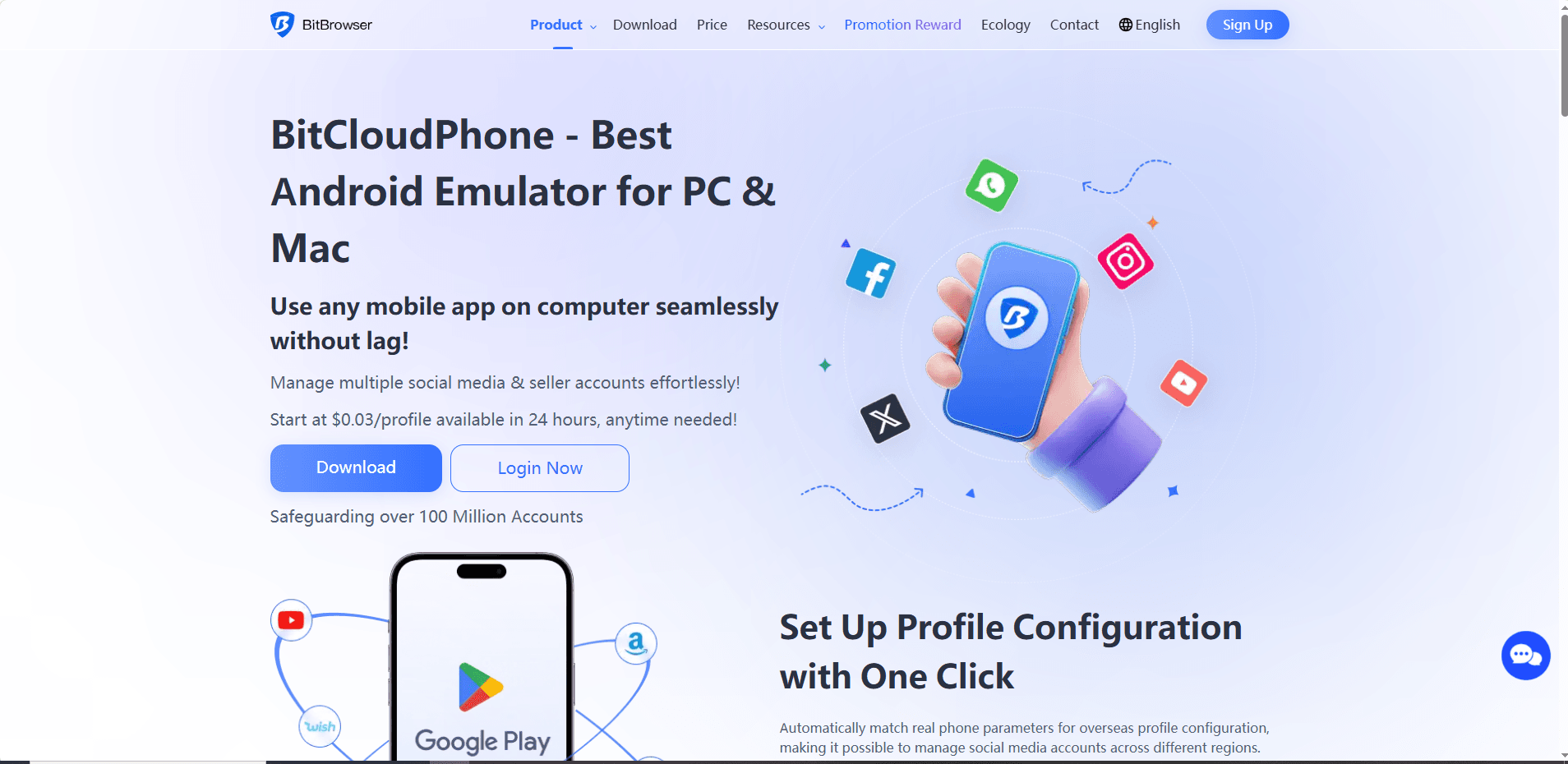
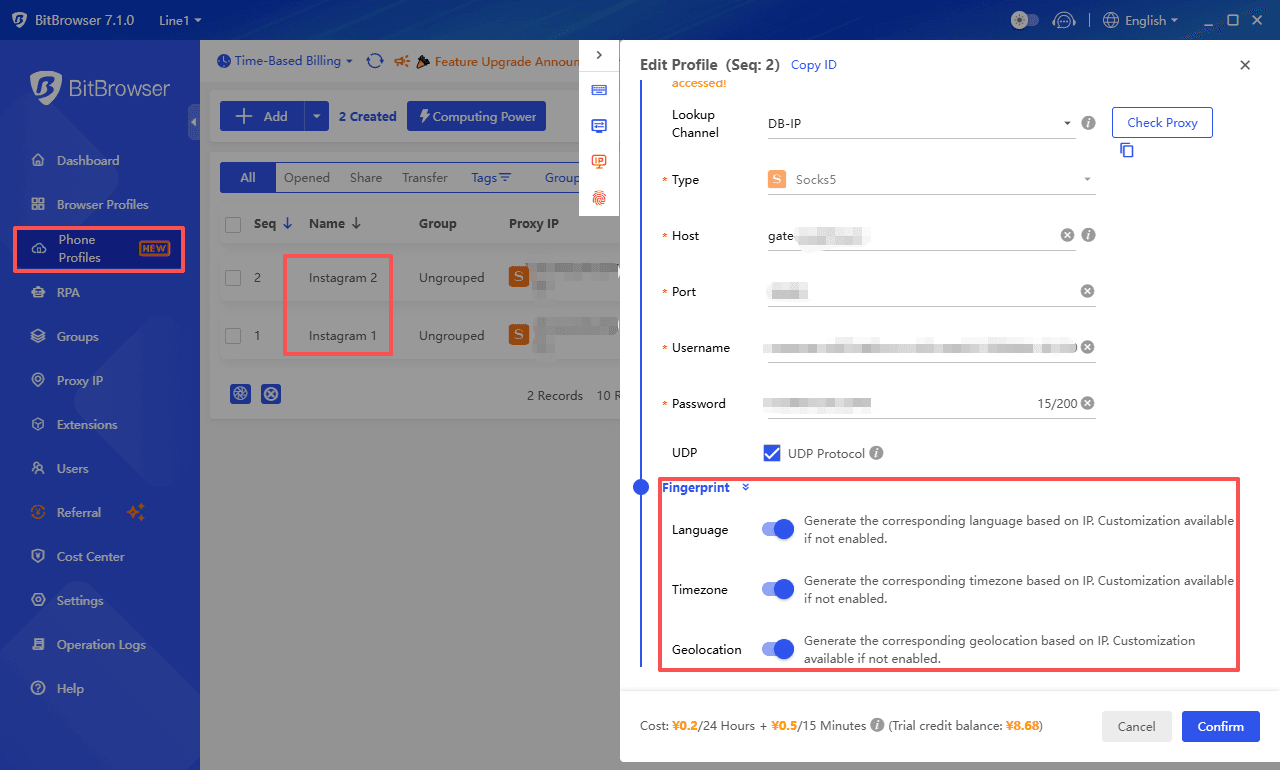

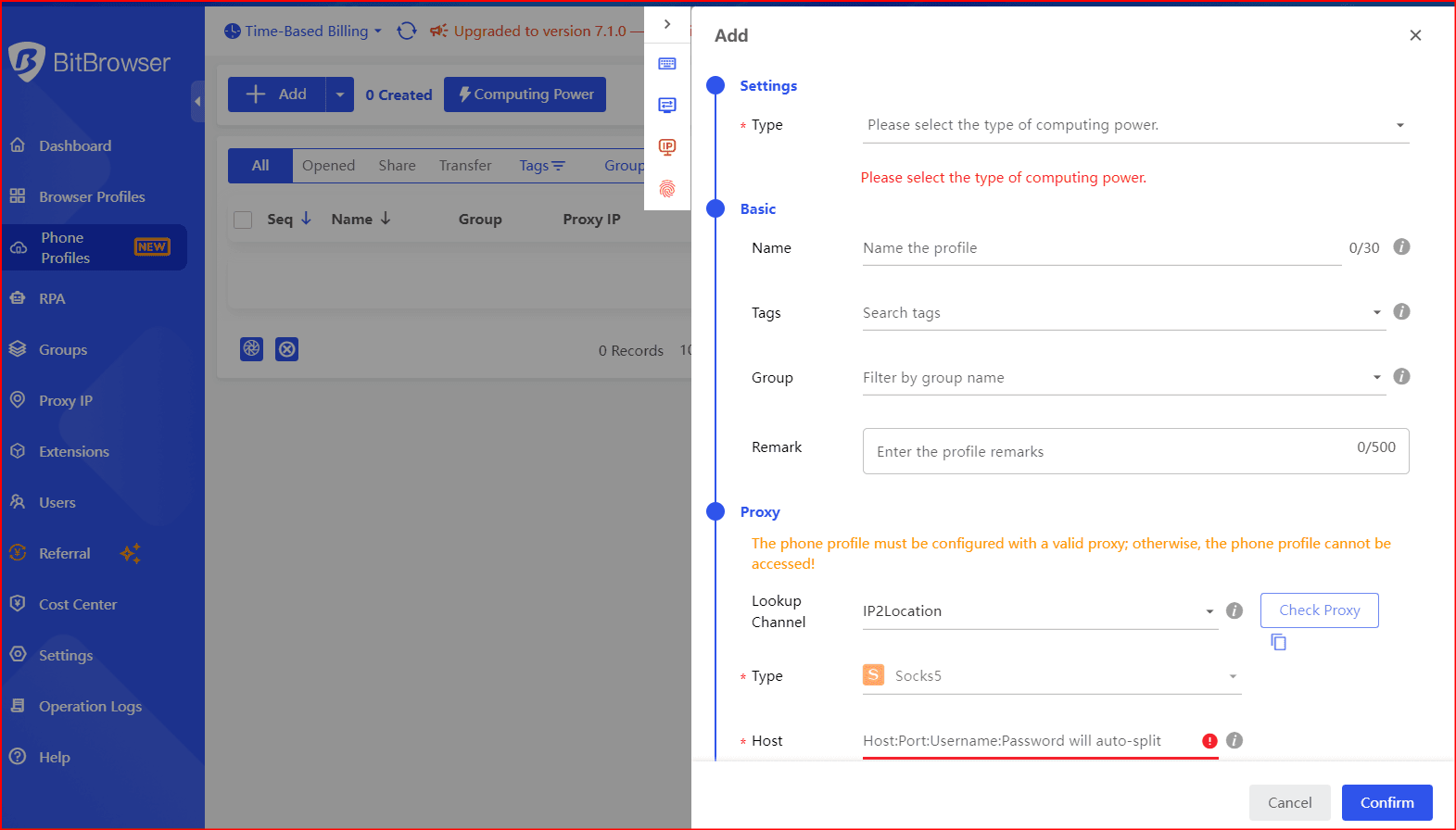

 BitCloudPhone: Unleash Mobile Power in the Cloud – Save Up to 40%!
 Exclusive Cloud Phone Profiles & Computing Power Discounts:
 1 Month: 10% Off
 Limited-Time Offer:
 Double the Joy: Recharge & Get Free Cloud Phone Vouchers!