


CarderPlanet
Professional
- Messages
- 2,549
- Reaction score
- 735
- Points
- 113
This is not the last article on security, see more next week.
Good for carding. We put the virtual machine on an encrypted disk and drive in the stuff!
Good luck to all. Now there are some problems with the computer, in general, I will be glad even 1 ruble. WM R058123464140 leave your login in the comment. At the end of the week, I'll throw a list of all those who are not indifferent, if there are any)))
If you need a simple and very reliable tool to encrypt data (files or entire drives) and exclude unauthorized access to them, TrueCrypt is perhaps the best tool for this purpose.
This tutorial provides a simple example of using TrueCrypt to create an encrypted "disk" (volume) and then work with it. For most tasks of protecting your data, the described example will be sufficient for the subsequent independent use of the program.
Update: TrueCrypt is no longer developed or supported. I recommend using VeraCrypt (for encrypting data on non-system drives) or BitLocker (for encrypting a drive with Windows 10, 8 and Windows 7).
Where to download TrueCrypt and how to install the program
You can download TrueCrypt for free from the official website at http://www.truecrypt.org/downloads. The program is available in versions for three platforms:
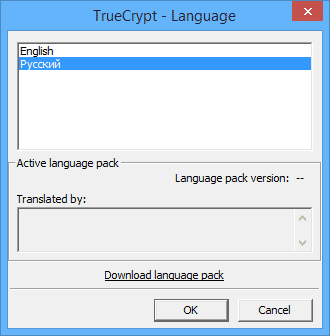
The installation of the program itself is a simple acceptance of everything that is suggested and a click on the "Next" button. By default, the utility is in English, but if you need TrueCrypt in Russian, download Russian from http://www.truecrypt.org/localizations, and then install it as follows:
Using TrueCrypt
So, you have installed and launched the program (the screenshots will show TrueCrypt in Russian). The first thing you need to do is create a volume, click the appropriate button.
The Create TrueCrypt Volumes Wizard opens with the following options for creating a volume:
After that, you will be prompted to choose - a regular or hidden volume should be created. From the explanations in the program, I think it is clear what the differences are.
The next step is to choose the location of the volume, that is, the folder and file where it will be located (since we chose to create a file container). Click "File", navigate to the folder where you intend to store the encrypted volume, enter the desired file name with the extension .tc (see the picture below), click "Save", and then - "Next" in the volume creation wizard.
The next step in the configuration is to select encryption options. For most tasks, if you are not a secret agent, the standard settings are enough: you can be sure, without special equipment, no one will be able to view your data before in a few years.
The next step is to set the size of the encrypted volume, depending on how much files you plan to keep secret.
Click "Next" and you will be asked to enter a password and confirm the password on the volume. If you want to really protect your files, follow the recommendations that you see in the window, everything is described in detail there.
At the stage of formatting the volume, you will be prompted to move the mouse over the window to generate random data that will help increase the strength of the encryption. In addition, you can specify the file system for the volume (for example, NTFS should be selected to store files larger than 4 GB). After this is done, click "Place", wait a bit, and after you see that the volume has been created, exit the TrueCrypt Volume Creation Wizard.
Working with an encrypted TrueCrypt volume
The next step is to mount the encrypted volume on the system. In the main TrueCrypt window, select the drive letter that will be assigned to the encrypted storage and, by clicking File, specify the path to the .tc file that you created earlier. Click the Mount button and then enter the password that you set.
After that, the mounted volume will be reflected in the main TrueCrypt window, and if you open Explorer or "My Computer", you will see a new disk there, which represents your encrypted volume.
Now, for any operations with this disk, saving files on it, working with them, they are encrypted "on the fly". After working with an encrypted TrueCrypt volume, in the main program window, click "Unmount", after that, until the next password entry, your data will be inaccessible to outsiders.
Good for carding. We put the virtual machine on an encrypted disk and drive in the stuff!
Good luck to all. Now there are some problems with the computer, in general, I will be glad even 1 ruble. WM R058123464140 leave your login in the comment. At the end of the week, I'll throw a list of all those who are not indifferent, if there are any)))
If you need a simple and very reliable tool to encrypt data (files or entire drives) and exclude unauthorized access to them, TrueCrypt is perhaps the best tool for this purpose.
This tutorial provides a simple example of using TrueCrypt to create an encrypted "disk" (volume) and then work with it. For most tasks of protecting your data, the described example will be sufficient for the subsequent independent use of the program.
Update: TrueCrypt is no longer developed or supported. I recommend using VeraCrypt (for encrypting data on non-system drives) or BitLocker (for encrypting a drive with Windows 10, 8 and Windows 7).
Where to download TrueCrypt and how to install the program
You can download TrueCrypt for free from the official website at http://www.truecrypt.org/downloads. The program is available in versions for three platforms:
- Windows 8, 7, XP
- Mac OS X
- Linux
The installation of the program itself is a simple acceptance of everything that is suggested and a click on the "Next" button. By default, the utility is in English, but if you need TrueCrypt in Russian, download Russian from http://www.truecrypt.org/localizations, and then install it as follows:
- Download Russian language archive for TrueCrypt
- Unpack all files from the archive into the folder with the installed program
- Start TrueCrypt. Perhaps the Russian language is activated by itself (if Windows is Russian), if not, then go to "Settings" - "Language" and select the desired one.
Using TrueCrypt
So, you have installed and launched the program (the screenshots will show TrueCrypt in Russian). The first thing you need to do is create a volume, click the appropriate button.
The Create TrueCrypt Volumes Wizard opens with the following options for creating a volume:
- Create an encrypted file container (we will analyze this option)
- Encrypt a non-system partition or disk - this means full encryption of an entire partition, hard disk, external drive, on which the operating system is not installed.
- Encrypt system partition or disk - full encryption of the entire Windows system partition. To start the operating system, you will have to enter a password later.
After that, you will be prompted to choose - a regular or hidden volume should be created. From the explanations in the program, I think it is clear what the differences are.
The next step is to choose the location of the volume, that is, the folder and file where it will be located (since we chose to create a file container). Click "File", navigate to the folder where you intend to store the encrypted volume, enter the desired file name with the extension .tc (see the picture below), click "Save", and then - "Next" in the volume creation wizard.
The next step in the configuration is to select encryption options. For most tasks, if you are not a secret agent, the standard settings are enough: you can be sure, without special equipment, no one will be able to view your data before in a few years.
The next step is to set the size of the encrypted volume, depending on how much files you plan to keep secret.
Click "Next" and you will be asked to enter a password and confirm the password on the volume. If you want to really protect your files, follow the recommendations that you see in the window, everything is described in detail there.
At the stage of formatting the volume, you will be prompted to move the mouse over the window to generate random data that will help increase the strength of the encryption. In addition, you can specify the file system for the volume (for example, NTFS should be selected to store files larger than 4 GB). After this is done, click "Place", wait a bit, and after you see that the volume has been created, exit the TrueCrypt Volume Creation Wizard.
Working with an encrypted TrueCrypt volume
The next step is to mount the encrypted volume on the system. In the main TrueCrypt window, select the drive letter that will be assigned to the encrypted storage and, by clicking File, specify the path to the .tc file that you created earlier. Click the Mount button and then enter the password that you set.
After that, the mounted volume will be reflected in the main TrueCrypt window, and if you open Explorer or "My Computer", you will see a new disk there, which represents your encrypted volume.
Now, for any operations with this disk, saving files on it, working with them, they are encrypted "on the fly". After working with an encrypted TrueCrypt volume, in the main program window, click "Unmount", after that, until the next password entry, your data will be inaccessible to outsiders.


